



要将 Windows XP/Vista/7/8/8.1 连接至希捷商业级网络存储 iSCSI 目标,请按照此过程执行:
首先,请为您的 Windows 电脑下载并安装相应版本的 iSCSI 发起程序。
接着,从 Windows Start(开始)菜单打开 iSCSI 发起程序。
Windows XP:
- 单击 Windows Start(开始)菜单,然后选择 All Programs(所有程序)。
- 在列表中选择 iSCSI Initiator(iSCSI 发起程序)。
Windows Vista/7:
- 单击 Windows Start(开始)菜单,然后在 Search programs and files(搜索程序和文件)方框中输入 iscsi initiator。
- 在 Programs(程序)下单击 iSCSI Initiator(iSCSI 发起程序)图标。
Windows 8 和 8.1:
- 从平铺视图,输入 iscsi initiator 并且 Windows 将自动搜索。
- 在 Programs(程序)下单击 iSCSI Initiator(iSCSI 发起程序)图标。
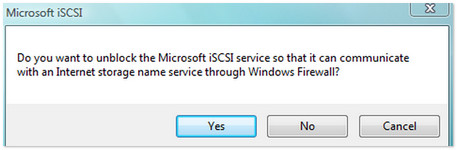
将显示 Microsoft iSCSI 对话框。
- 单击 Yes(是)以在每次系统开机时启动 iSCSI 服务。

- 单击 Yes(是)以从 Windows 防火墙解除 iSCSI 服务封锁。
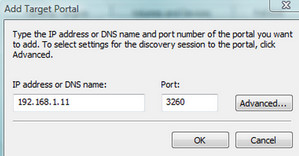
将显示 iSCSI Initiator Properties(iSCSI 发起程序属性)窗口。 - 选择 Discovery(发现)选项卡并选择 Add Portal(添加门户)。

- 输入希捷商业级网络存储的 IP 地址并单击 OK(确定)。
 默认端口 3260 将已设置。
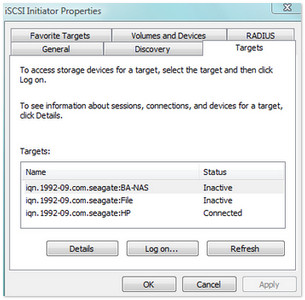
- 选择 Targets(目标)选项卡。
选择 Refresh(刷新)。
选择 iSCSI 目标并单击 Log on...(登录...)按钮。
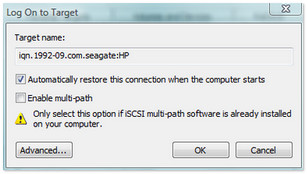
将显示 Log On to Target(登录至目标)窗口。 - 勾选 Automatically restore this connection when the computer starts(电脑启动时自动还原此连接)方框并单击 OK(确定)以关闭窗口。
- 右键单击 (My) Computer(我的电脑/计算机)并选择 Manage(管理)。
(Windows 8:按 Windows 键 + X,然后选择 Computer Management(计算机管理)。
 - 选择 Disk Management(磁盘管理)。
将显示 Initialize Disk(初始化磁盘)对话框。对任何大于 2TB 的磁盘选择 GPT,如果小于 2TB 选择 MBR。 - 现在,磁盘已初始化,右键单击 Unallocated(未分配)空间并使用 New Simple Volume Wizard(新建简单卷向导)格式化硬盘。
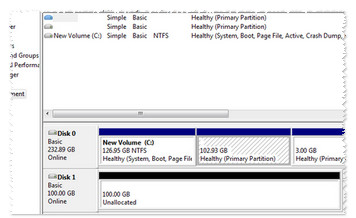
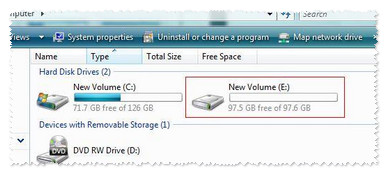
格式化之后,硬盘即显示为 (My) Computer(我的电脑/计算机)或 Windows/文件资源管理器中的盘符,并已可供使用。