Was this content helpful?
How could we make this article more helpful?
Getting Connected
 Connect the power supply
Connect the included power cable in the order listed below.
- 2big RAID power input.
- A live power outlet.

 Connect the USB cable
Use the USB-C to USB-C cable to connect 2big RAID to a USB-C port (USB 3.1 or Thunderbolt 3) on your computer.

 Set up LaCie 2big RAID
The setup process lets you:
| Register your device | Get the most from your device with easy access to information and support. |
| Install Toolkit | Manage RAID and more. |
| Learn more about Toolkit |
|---|
Toolkit provides useful tools that let you easily:
|
 Start here
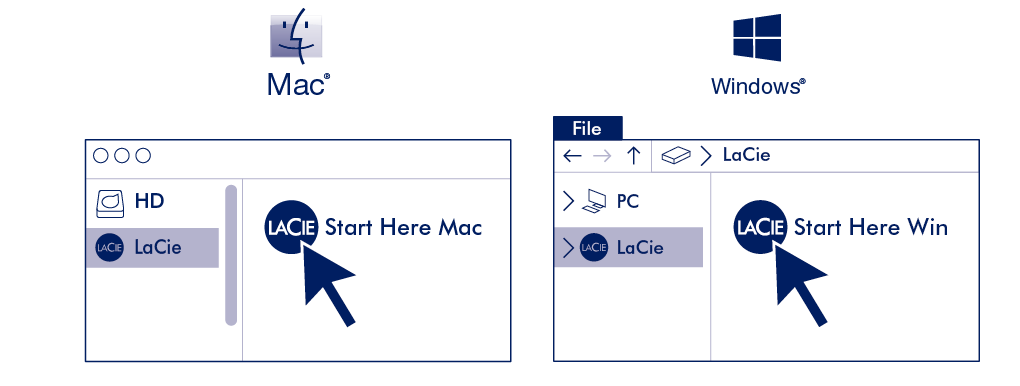
Using a file manager such as File Explorer or Finder, open LaCie 2big RAID and launch Start Here Mac or Start Here Win.
 Register your device
Enter your information and click Register.

 Download Toolkit
Click the Download button.

 Install Toolkit
Using a file manager such as Finder or File Explorer, go to the folder where you receive downloads.

 Open the SeagateToolkit.zip file. Click on the Seagate Toolkit Installer to launch the application.
 Click on the SeagateToolkit.exe file to launch the application.
Storage format
LaCie 2big RAID is configured RAID 0 for full storage capacity and formatted exFAT for compatibility with macOS and Windows. Install Toolkit to help you initially set up the drives for performance or protection. See RAID Setup in the Toolkit user manual for details.
If you use 2big RAID with only one type of computer, you can optimise file copy performance by formatting the drives in the native file system for your operating system. See Optional Formatting for details.
Disconnecting the hard drive
In order to avoid file system corruption, it’s important to unmount the drive volumes before disconnecting the interface cable. See Safely Remove Device From Your Computer for details.