Was this content helpful?
How could we make this article more helpful?
Back Up Now! (Mac)
Connect your storage device to your computer and you’re ready to back up your important files and folders. The fastest way to back up is to select items on your computer and copy them to your drive by dragging and dropping. If you want to continuously sync data between your computer and your drive, you can create an automated Sync Plus plan with Toolkit.

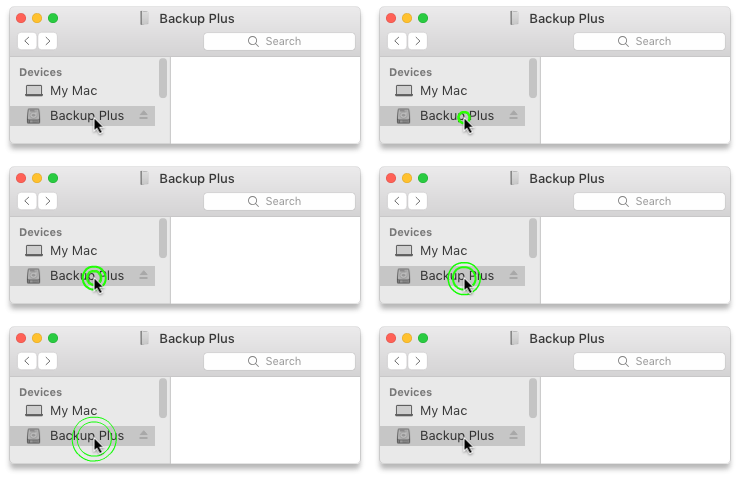
Open a Finder window and click on your drive

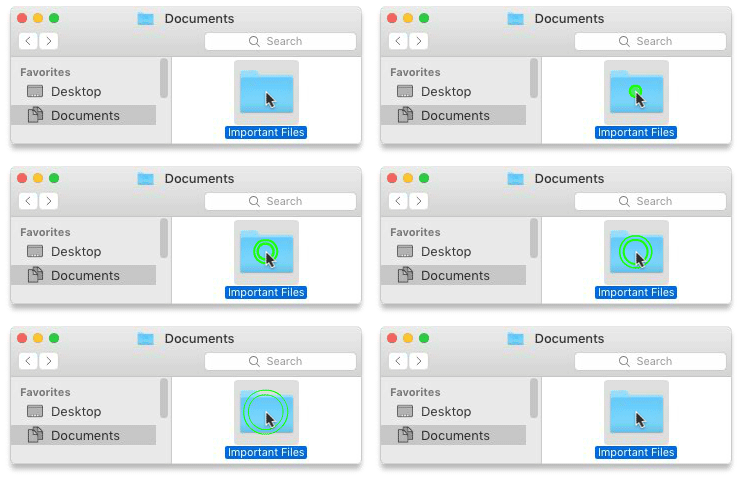
Open another Finder window and select folders or files on your computer to back up

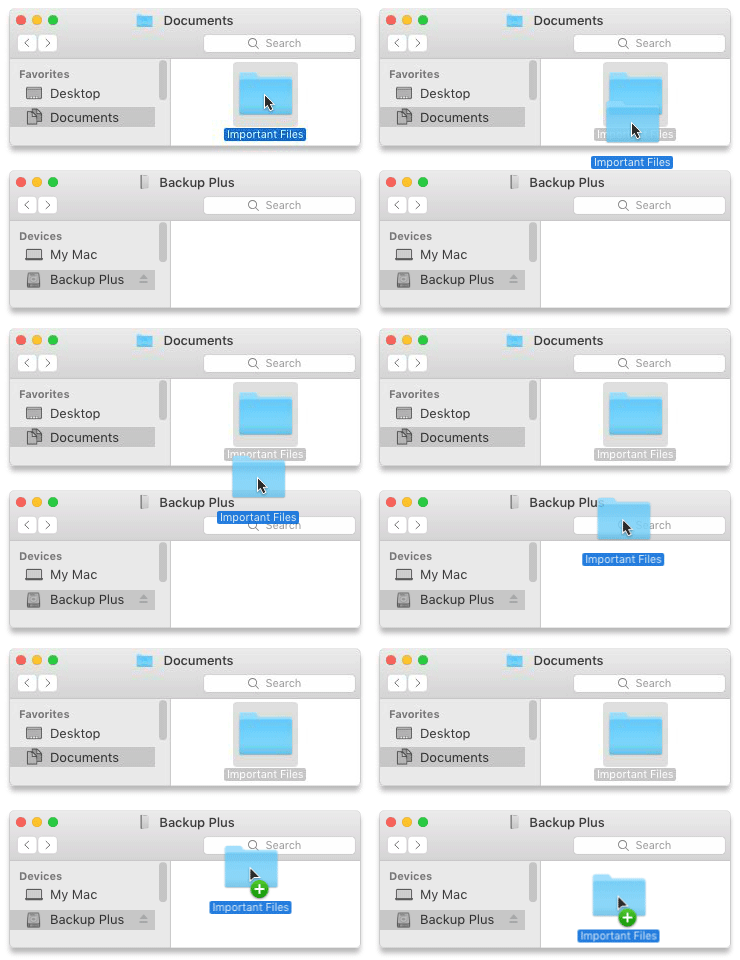
Drag items to your drive
Open a Finder window and select folders or files on your computer to back up
Choose Copy from the Edit menu
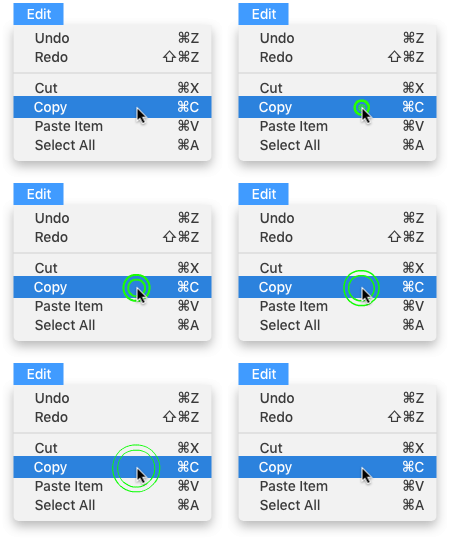
| Another way to copy to the clipboard |
|---|
|
Hold down the Command key (⌘) and press C. |
Click on your drive

Choose Paste Item(s) from the Edit menu
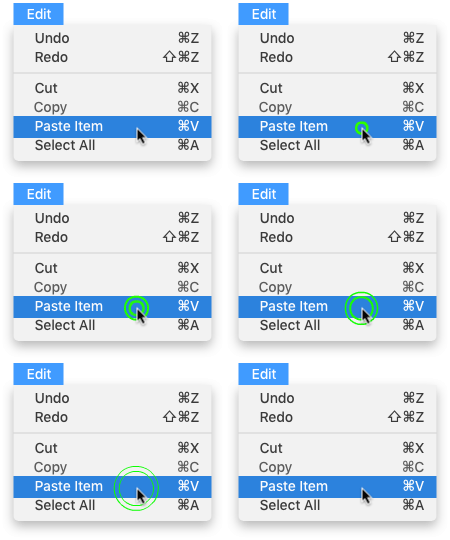
| Another way to paste files copied to the clipboard |
|---|
|
Hold down the Command key (⌘) and press V. |
Set up a Toolkit Sync Plus plan
Toolkit's easy-to-use Sync Plus feature continuously syncs data between your computer and your drive, ensuring your files are available in both places. Whenever you add, edit, or delete files on one device, Sync Plus automatically updates the files on the other.
| Stay in sync | Sync folders on your Mac with folders on your drive. |
| Archive deleted files | Automatically copy files you’ve deleted to the archive folder on your drive. |
For details, see the Toolkit User Manual.
Time Machine is an automated backup feature built into your Mac. For details, see this Apple support article.