Was this content helpful?
How could we make this article more helpful?
FireCuda Forge LEDs
LEDs provide information on FireCuda Forge's status.
Power LED
The power LED is located on the back of the device.
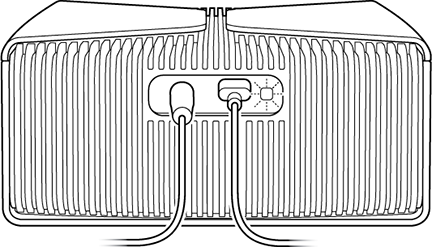
| LED | State |
|---|---|
| On (white) | The device is ready. |
| Slow blinking (white) | Drive is being accessed. |
| Off | Device is unavailable because the drive has been in power-saving mode for an extended period of time. |
RGB LEDs
The RGB LEDs can be customized with a variety of colors and light patterns for enhanced gameplay illumination. See Use Toolkit to Customize RGB Settings and More.

Device status
The RGB LEDs also provide important device status information.
| Pattern | Color and location | Behavior | System status |
|---|---|---|---|
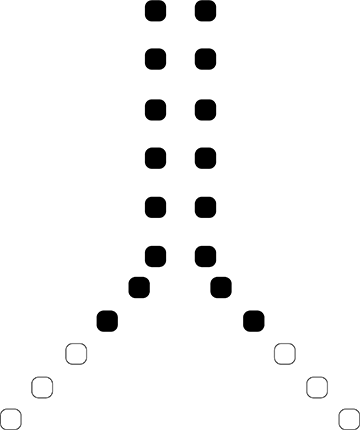 | First three LEDs from front illuminated white | Steady (initial) and then Breathe | Device is starting. |
 | All LEDs illuminated orange | Steady | Normal operation (default color/pattern). |
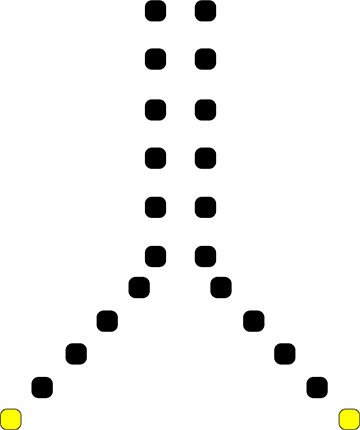 | First LEDs from front illuminated yellow | Steady | No SSD detected. |
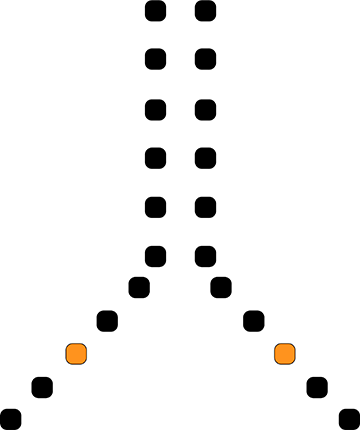 | Third LEDs from front illuminated orange | Steady | No HDD detected. |
 | First LEDs from front illuminated yellow and third LEDs from front illuminated orange | Steady | No SSD and HDD detected. |
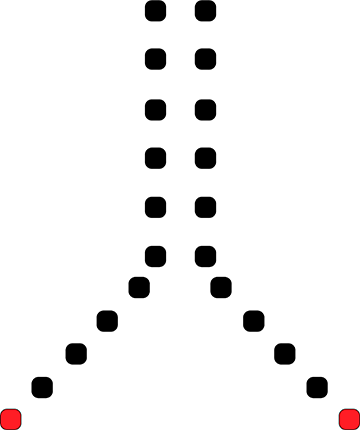 | First LEDs from front illuminated red | Steady | Fan not detected. |
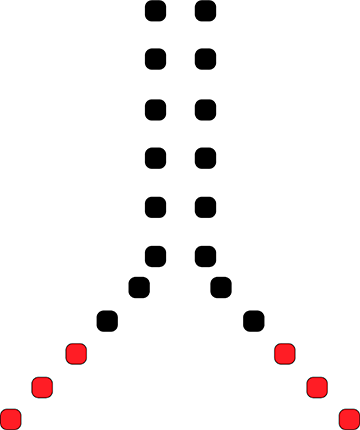 | First three LEDs from front illuminated red | Steady | Internal system error detected. |