Every gamer knows the satisfaction of fine-tuning a build — whether it’s stacking perks for maximum damage, tweaking a loadout for balance, or optimizing gear to squeeze out every last advantage. Building a gaming rig feels the same. Every choice matters, from the graphics card to the RAM, with each upgrade bringing you closer to that sweet spot where performance feels effortless.
One component often overlooked — yet absolutely essential — is gaming storage. Your drive doesn’t just hold your games; it dictates how fast they load, how smooth worlds feel and how quickly you can jump back into the action. That’s why NVMe SSDs have become game changers. They cut down wait times, reduce stutter and give your system the kind of responsiveness that keeps you immersed instead of impatient.
In this post, we’ll explore the best NVMe SSDs for gaming, highlighting the options that can help you boost speed, expand storage and unlock a smoother, more reliable gaming experience.
What’s an NVMe SSD?
From floppy disks to cartridges to hard drives, computers, gaming consoles, handhelds and other digital devices have relied on many forms of storage over the years. Today, the standard is solid-state drives (SSDs), with NVMe SSDs standing at the top for speed and reliability.
NVMe — short for non-volatile memory express — may sound technical, but much like how RAM is simply known by its acronym, most users only need to remember the shorthand. What matters is performance: NVMe SSDs are significantly faster, more durable, and longer lasting than other storage formats.
Their secret lies in how they connect. Instead of relying on slower interfaces, NVMe drives tap directly into a device’s PCIe slots. This shortens the path between your processor and storage, cutting latency and establishing near-instant access to data. The result? Smoother gameplay, faster boot times and a noticeable boost in overall system responsiveness.
Comparing NVMe SSDs to SATA SSDs and external SSDs
Just like in games — where certain gear works best for specific situations — the same logic applies to storage. NVMe SSDs represent the cutting edge, but that doesn’t mean they’re always the perfect fit for everyone. Depending on your setup and priorities, another option might serve you better.
Take SATA SSDs, for instance. As the predecessor to NVMe, they’re widely compatible with older systems and often easier to install. They also tend to offer higher capacities at lower prices, making them a smart pick for budget-friendly storage.
Here’s a quick breakdown to help you decide:
- NVMe SSDs: Best for active games, demanding apps and any task where speed makes a noticeable difference.
- SATA SSDs: Great for affordable bulk storage or less resource-heavy workloads.
- External drives: Perfect for flexible, on-the-go expansion — today’s equivalent of a memory card, and easy to share across devices.
Why an NVMe SSD is a game-changing storage upgrade
The way your computer’s components interact to create a seamless experience is complex, but storage is one of those elements you’ve likely felt the impact of directly even if you didn’t realize it.
The first area is speed. Storage speed determines how quickly data can be written to or read from your drive and passed along to the processor—or, with newer NVMe DirectStorage compatibility, directly to your GPU. DirectStorage compatibility bypasses the CPU, letting your graphics card load textures, environments and assets much faster. Every time you launch a game, load a map, open an app or boot up your device, your storage is working nonstop to fetch and deliver the data you need. The faster the drive and the more efficient the data path, the less you notice it and the more natural everything feels.
The second area is capacity, though it’s not as simple as “more space equals better.” You can fill a drive to the brim, but operating near full capacity can slow things down and wear on drive health. It’s like hauling an overstuffed backpack every day. Over time, you might notice lagging performance, longer load times, and even reduced lifespan.
Together, these two factors (speed and capacity) make storage one of the quiet heroes of your system. It doesn’t get the spotlight like a GPU or CPU, but it defines how smooth your experience feels. And with advancements like NVMe DirectStorage bridging storage and graphics performance, that hero role is only getting stronger.
Comparing top NVMe SSD options
Anyone who’s gone shopping for new computer hardware knows that the available options are numerous. Enough to feel overwhelmed, for sure.
We can’t speak to every product on the market, but we can certainly speak to ours. So, here are a few SSD recommendations, based on common use cases.
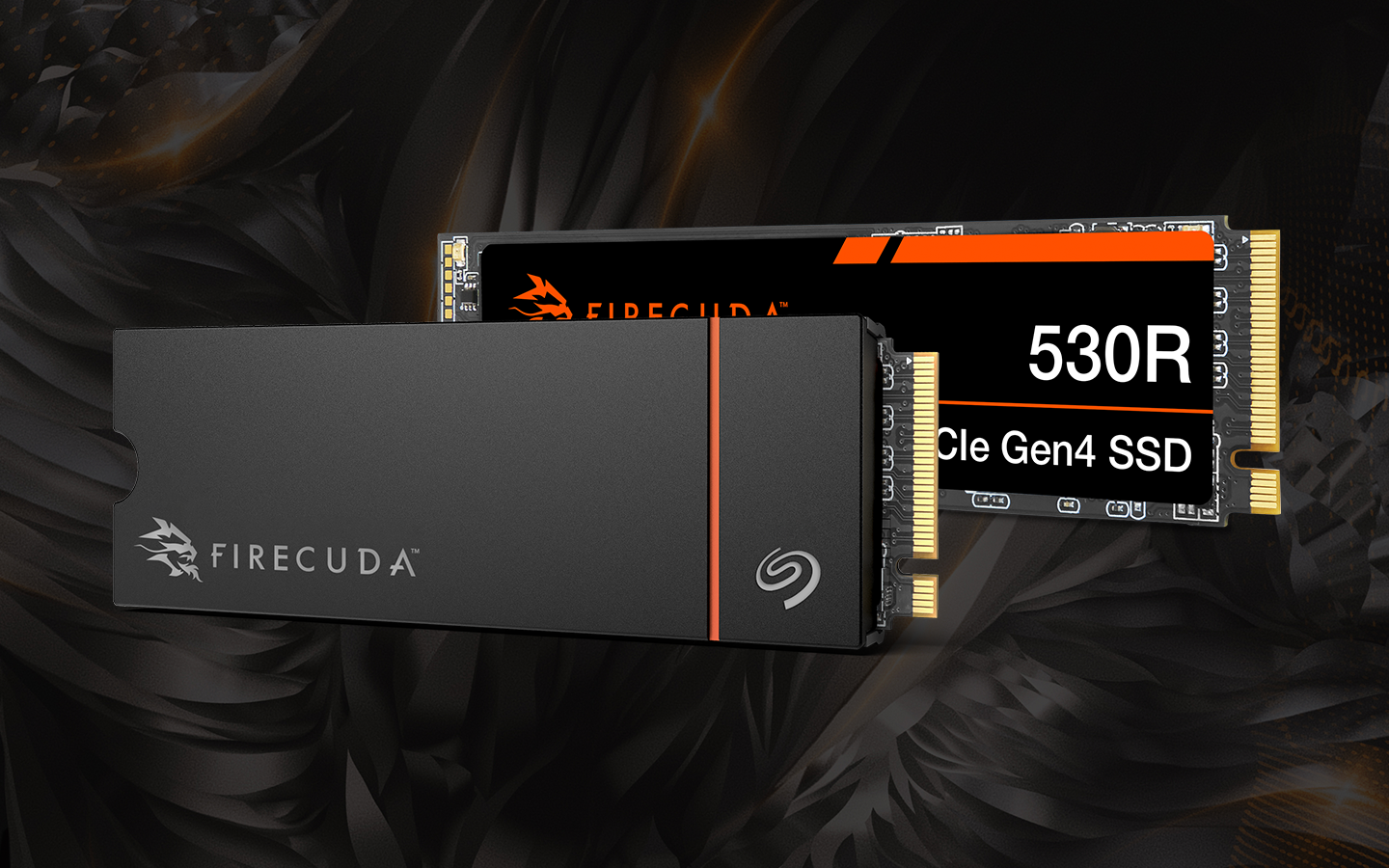
FireCuda 530R NVMe SSD
A high-performance Gen4 NVMe drive, the FireCuda® 530R is the best option for dedicated gamers, creative professionals and other users who need top-of-the-line hardware.
The 530R combines top-end Gen4 speed with enterprise-like endurance, making sure you experience premium performance even in environments where a standard SSD might degrade more quickly. It’s also compatible with Microsoft’s DirectStorage for faster load times.
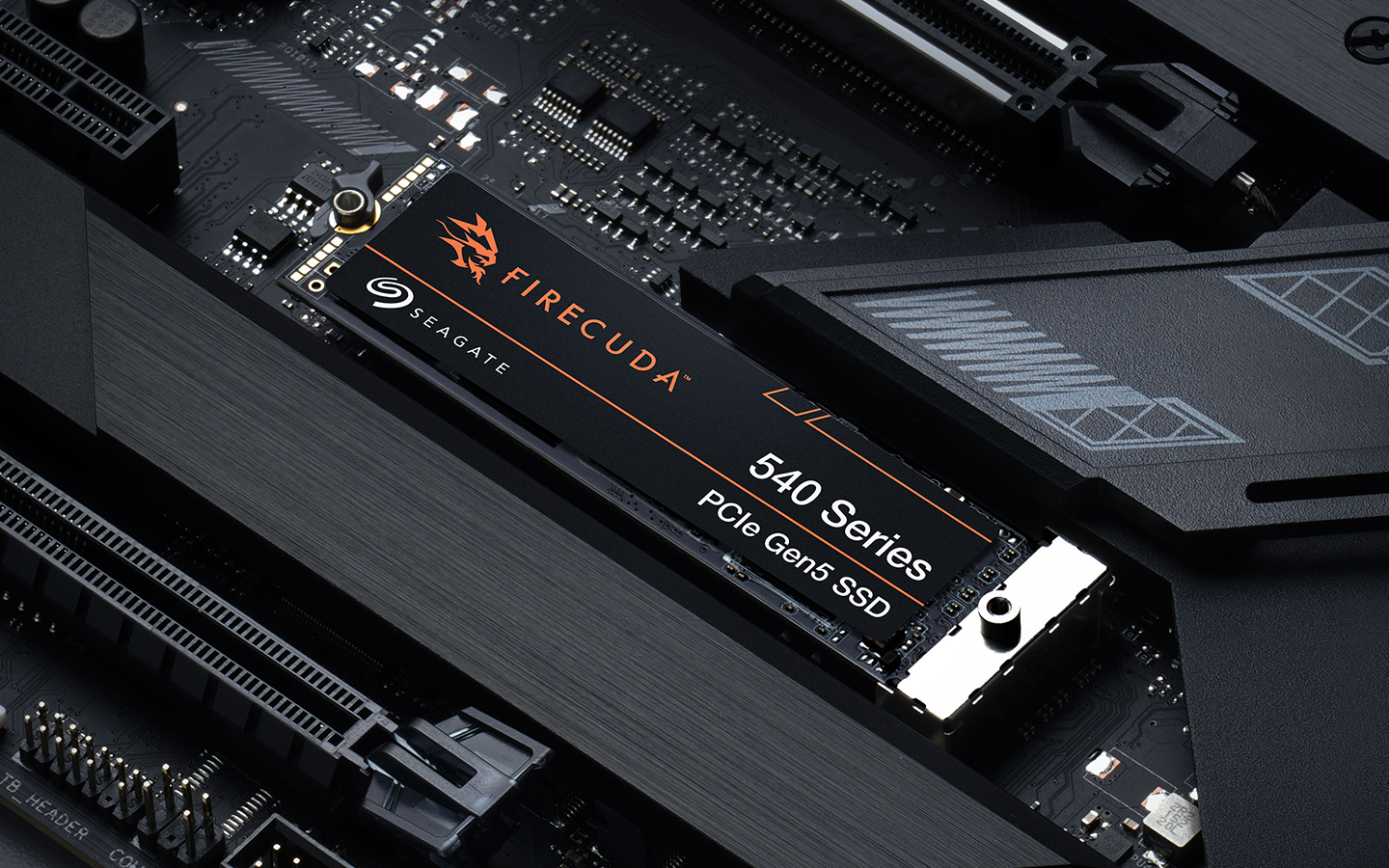
FireCuda 540 Series
A cutting-edge PCIe Gen 5 NVMe drive, the FireCuda 540 is designed for those whose use case includes extreme resource demand and industry-leading refresh rates. If you need the best — and you have the compatible hardware to make use of it — the 540 is the best you can get.
Game Drive for PS5 NVMe SSD
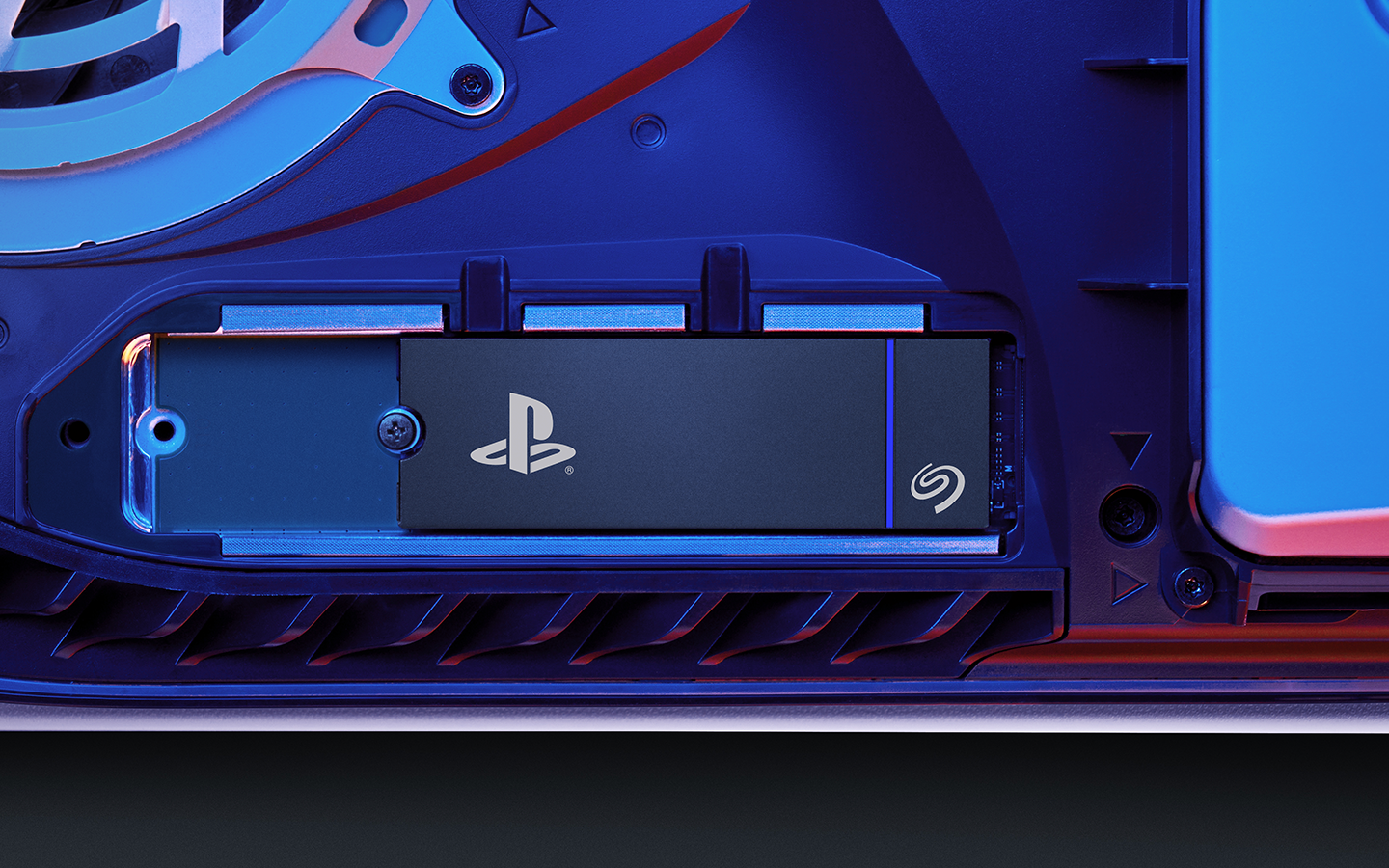
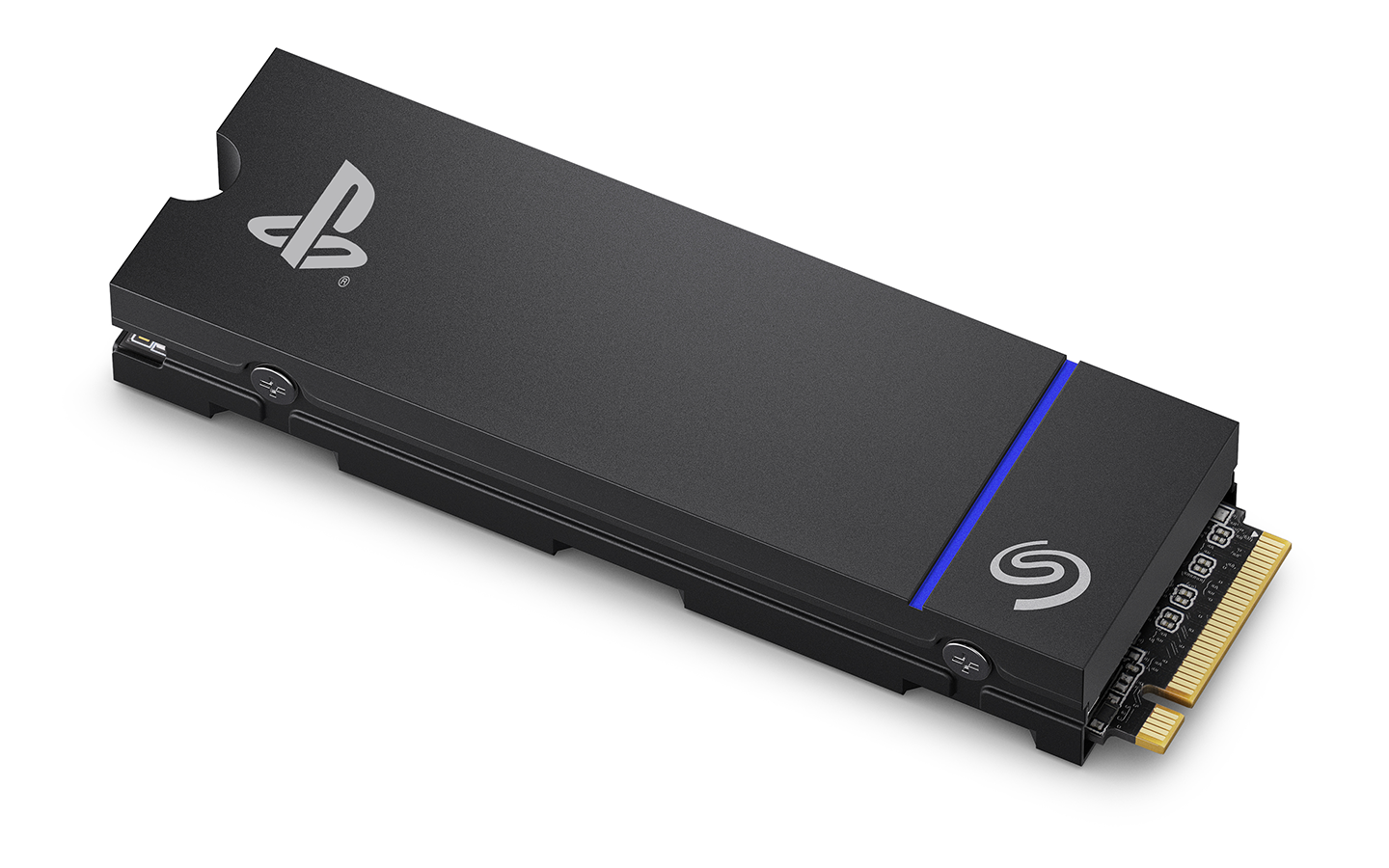
Built and designed specifically for use as an expansion drive for the latest PlayStation® console, the Game Drive for PS5 NVMe SSD delivers top PC gaming performance to players that favor the Sony® proprietary device.
FireCuda 520N SSD
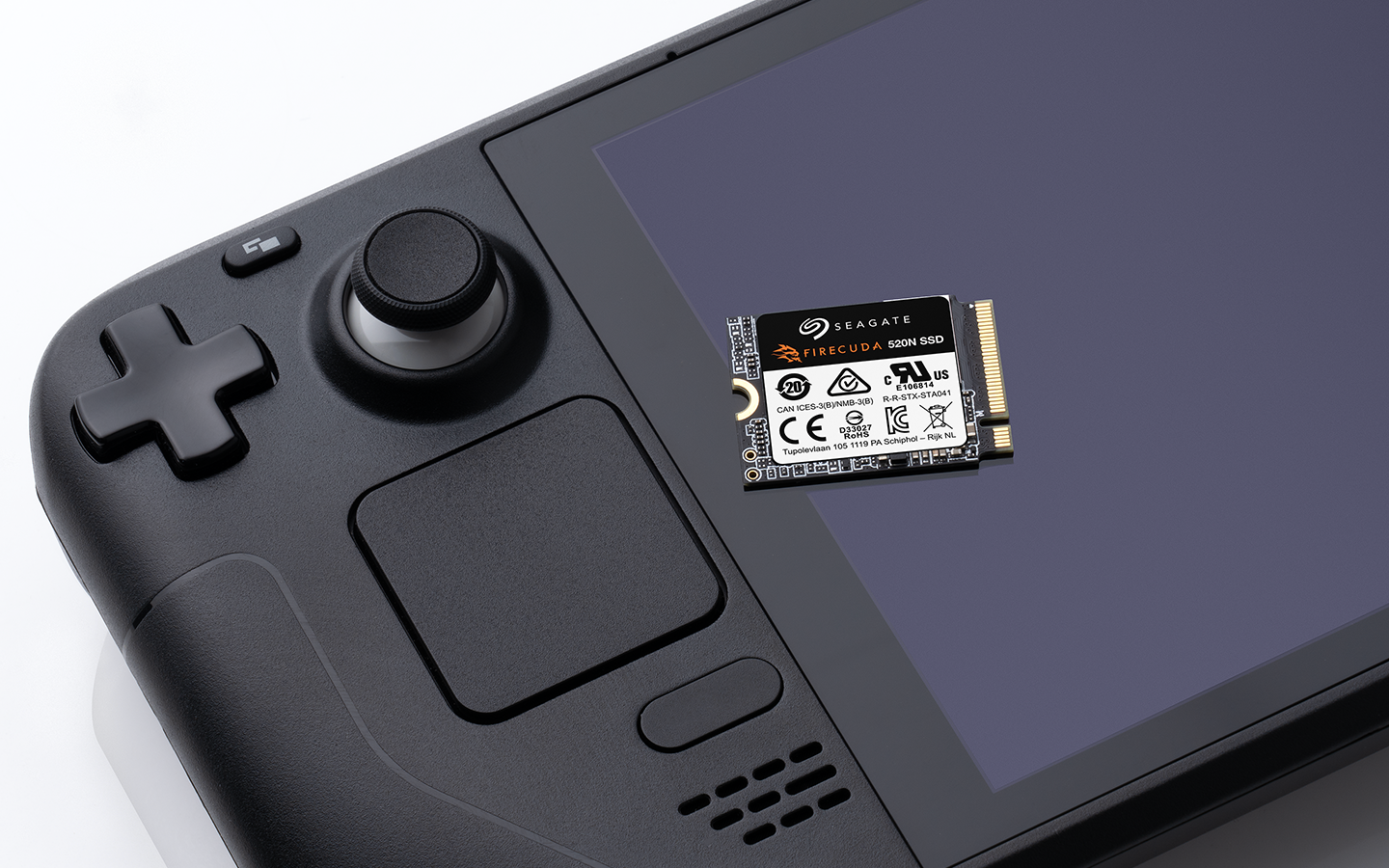
Not all gaming happens at a desk or on a couch. Some players do most of their button-mashing on the go, using devices like the Steam Deck. For gamers like these, we offer the FireCuda 520N.
This smaller form factor SSD can be used in a full-size PC, but fits perfectly in the limited space of a handheld housing. Either way, you’ll be enjoying NVMe-powered speed and performance.
| Model | Capacity options | Read/write speeds | Heatsink included | Warranty | Best for |
| FireCuda 530R NVMe SSD | 1TB 2TB 4TB | 7,400/6,800 MB/s | No | Five years | Modern gaming with dependable performance |
| FireCuda 540 Series | 1TB 2TB | 10,000/10,000 MB/s | No | Five years | Premium performance |
| Game Drive PS5 NVMe SSD | 1TB 2TB | 7,400/6,900 MB/s | Yes | Five years | Console compatible functionality |
| FireCuda 520N SSD | 1TB 2TB | 4,800/4,700 MB/s | No | Five years | Small form factor needs |
Evaluating gaming performance and technical insights
Choosing the right SSD isn’t always straightforward, especially if you’re not fluent in the jargon or familiar with the benchmarks used to measure performance. Numbers like read/write speeds, endurance ratings and interface types can feel abstract if you don’t already know how they translate into real-world use.
The good news? You don’t have to be an expert to make a smart decision. What matters most is understanding which specs actually impact your experience and how to weigh them against your needs. To make things easier, we’ve put together a quick overview of the most important stats and features plus some guidance on how to interpret them so you can shop with confidence and pick the SSD that’s truly right for you.
Sequential read/write speeds
For most gamers, the first spec worth paying attention to is sequential read/write speed. This metric measures how quickly a drive can handle large chunks of data from start to finish — essentially, how fast it can read information stored on the drive or write new information onto it. Think of it as the drive’s raw horsepower for big, continuous tasks.
Why does that matter? Because every modern game relies on massive files. With executable sizes often reaching dozens — or even hundreds — of gigabytes, your drive needs to be able to pull all that data quickly and efficiently. Sequential read speeds influence how fast a game launches and how smoothly it streams assets once you’re playing, while write speeds determine how quickly you can install or update titles.
In practical terms, the higher these numbers are, the less time you spend waiting. Instead of staring at progress bars or loading screens, you’re in the game faster and back in the action sooner. For players who value responsiveness and minimal downtime, sequential performance isn’t just a technical detail — it’s a direct upgrade to the gaming experience.
Input/output operations per second (IOPS).
If sequential speeds measure how fast your drive handles a single large task, IOPS — short for input/output operations per second — tells you how many smaller tasks it can juggle at once. Instead of focusing on one giant file transfer, IOPS reflects the drive’s ability to handle thousands of tiny read and write requests every second.
Why does this matter? Not every operation is as hefty as installing a 50GB game. Games and applications constantly call on the drive for smaller bits of data: loading textures, saving progress, fetching patches or running background processes. If your drive can’t keep pace with these rapid-fire requests, it has to queue them, which creates latency and slows everything down.
In short, high IOPS means your system feels snappier and more responsive, even under heavy workloads. For gamers, that can translate into smoother open worlds, faster asset streaming and fewer hiccups when multitasking in and out of games.
Consistent performance
Speed is important, but speed without consistency won’t get you very far. A drive that can post impressive peak numbers in benchmarks may look great on paper, but if performance fluctuates wildly in real use, those numbers don’t tell the full story. You might see blazing-fast results one moment and frustrating slowdowns the next even when handling similar types of requests.
Some variation is natural, of course. No drive performs exactly the same under every condition. But a quality SSD should operate within a fairly predictable range, giving you steady performance you can count on day in and day out. If deviations are too frequent or too extreme, then even the highest advertised maximum speed won’t matter much. What you’ll notice instead is lag, stutter and an overall inconsistent experience.
For gamers, that reliability is critical. A drive that delivers smooth, consistent performance keeps load times short, prevents immersion-breaking pauses, and ensures your system feels responsive no matter what you throw at it. In other words, consistency turns raw speed into real-world performance.
Heat management and cooling
If you haven’t spent much time tinkering with storage, it might surprise you that drives, like all computer components, generate heat during use. And with today’s increasingly demanding games and applications, heat can reach levels where proper management becomes important.
How you handle it depends on your setup and the type of drive you choose. Some drives run cool enough that you won’t need any additional measures. Others come with heat sinks built in, helping maintain optimal temperatures out of the box. In more intensive scenarios, you may even need to add a heat sink to prevent throttling and promote consistent performance.
Managing heat isn’t just about protecting your hardware; it’s also keeping your drive running at peak speed. Overheating can cause the system to slow down, even if the drive’s raw specs are top tier. In short, a cool drive is a fast, reliable drive.
Other factors to consider when choosing a NVMe SSD
Beyond speed, consistency and heat management, there are a few additional factors to consider when choosing a drive:
- Storage capacity: Think strategically about both your current needs and future growth. Games, applications and media files only get larger over time, so planning ahead can save you from constantly juggling space or adding extra drives later.
- Power efficiency: While storage doesn’t draw as much attention as CPUs or GPUs, it still consumes power from your system. Inefficient drives can strain your power supply, potentially slowing down performance or limiting upgrades elsewhere.
- Warranty and reliability: No hardware lasts forever, and even the best drives can fail. Choosing a product from a trusted brand like Seagate with a strong track record, solid warranty and responsive customer support supports peace of mind and keeps you gaming without unnecessary interruptions.
Considering these details alongside speed, IOPS and heat management helps you select a drive that not only performs well, but fits seamlessly into your system and your long-term plans.
Achieve peak gaming performance with the right NVMe SSD
If you’ve already outfitted your rig with high-speed processors and plenty of RAM, but performance still isn’t where you want it to be, it might be time to turn your attention to storage. A fast, reliable NVMe SSD can make a noticeable difference in load times, in-game streaming and overall system responsiveness.
Even if your system hasn’t been upgraded in a while, boosting or replacing your storage can be a cost-effective way to level up performance without investing in a full overhaul.
Whether you’re expanding console storage, adding space for a handheld or growing your well-organized entertainment library, the right NVMe drive enables faster access to games, smoother gameplay and a more responsive system. In short, it’s one of the most impactful upgrades you can make to keep your rig and gaming experience performing at its best.
Best NVME SSD for Gaming FAQs
To install an NVMe SSD in a gaming PC, first power down and unplug your system. Open the case and locate the M.2 slot on your motherboard. Carefully insert the NVMe drive at a slight angle, then secure it with the mounting screw. Close the case, reconnect power and boot up. Finally, format the drive in your operating system and initialize it, making it ready to store games and applications.
To install an NVMe SSD in a PS5®, first power off and unplug the console. Remove the side panel to access the SSD expansion slot. Unscrew the mounting screw and insert the new NVMe SSD into the slot at an angle, then secure it with the screw. Replace the cover, reconnect power and boot the PS5®. Format the drive when prompted, and it will be ready for games and apps.
NVMe DirectStorage is a technology that lets your NVMe SSD communicate directly with your GPU instead of routing data through the CPU first. This shortcut dramatically reduces load times, speeds up texture streaming, and allows smoother transitions in games or heavy visual applications. In short, it helps your system use storage and graphics more efficiently.
Storage speed affects everything from how quickly your computer boots to how fast apps, games and files load. A fast NVMe drive can move data to the CPU or GPU almost instantly, so you spend less time waiting and more time working or playing. Slow storage creates bottlenecks that even a powerful processor can’t fix.
Yes. When your drive is nearly full, it has less free space to write and rearrange data efficiently. This causes slower read/write speeds and can shorten the drive’s lifespan. Keeping at least 10–20% of your storage free ensures better performance, faster load times and healthier long-term drive operation.