





Just like the old boot floppy diskettes, CD or DVD-ROM discs can boot to a DOS or other operating systems. Just copying files to a CD will not work because the CD will need a master boot record and other hidden Startup operating system files. Instead, the preferred method is to create a single file, an image of a bootable CD, called an ISO image. Most CD-ROM burning applications recognize this type of image file. Once the ISO file is burned as an image, then the new CD is a clone of the original and bootable. Besides the bootable OS, the CD will also hold the various software applications like many Seagate utilities that are downloadable in .iso image format.
This document will cover How to use a downloaded ISO image and methods for rendering an .iso file ready to use.
Hardware Prerequisite: An internal or external CD-ROM burner is required for burning the ISO image to a blank CD.
Windows 8/8.1/10
Windows 7/Vista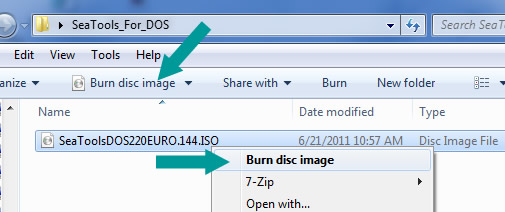
MacOS 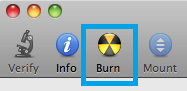
Additional Information:
This ISO image file should solely be used for the product it is dedicated for.
 Do not use the "Copy" feature in Windows; it is not capable of burning an ISO image to a CD.
 REFERENCE TO THIRD PARTIES AND THIRD PARTY WEB SITES. Seagate references third parties and third party products as an informational service only, it is not an endorsement or recommendation - implied or otherwise - of any of the listed companies. Seagate makes no warranty - implied or otherwise - regarding the performance or reliability of these companies or products. Each company listed is independent from Seagate and is not under the control of Seagate; therefore, Seagate accepts no responsibility for and disclaims any liability from the actions or products of the listed companies. You should make your own independent evaluation before conducting business with any company. To obtain product specifications and warranty information, please contact the respective vendor directly.
This document will cover How to use a downloaded ISO image and methods for rendering an .iso file ready to use.
Hardware Prerequisite: An internal or external CD-ROM burner is required for burning the ISO image to a blank CD.
Windows 8/8.1/10
- Download the ISO CD image to a folder on your computer.
- Open the folder where you have saved the ISO file.
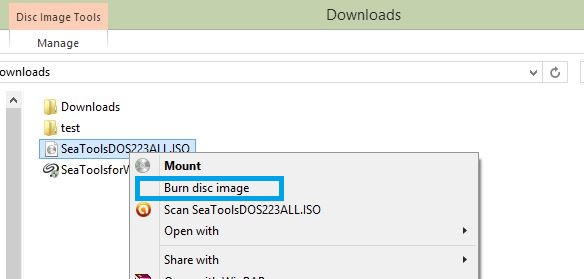
- Right click on the .iso file.
- From the menu select Burn disc image.
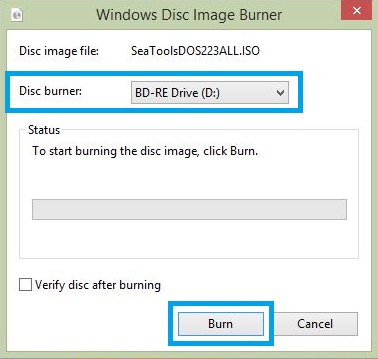
- The Windows Disc Image Burn will open.
- Select the Disc burner.
- Click on Burn.
Windows 7/Vista
- Download the ISO CD image to a folder on your computer.
- Insert a blank CD in your CD-RW drive.
- Navigate to the folder where you saved the file.
- Click to highlight the file (Windows 7/Vista) and/or right-click on the file (Windows 7 only) to see the options for creating a disc.
MacOS
- Download the file .ISO file to your Mac
- Insert a blank disc.
- From the Desktop, click on Utilities (or in some cases, Applications, and then Utilities).
- Launch Disk Utility.
- From the File menu, choose Open Disk Image.
- Select the ISO image to be burned.
- In the list of volumes, you will now see an item representing the ISO file. Select it.
- Click the Burn icon.
- A Select Image to Burn window will appear.
- Select the .iso file you want to burn to a CD/DVD.
- Make sure you have a disc inserted in your drive and then click the Burn.
- A Disk Utility window will appear showing the recording progress.
- Once the recording process has completed, Disk Utility will verify that the image was burned correctly.
- Click OK to eject the disc.
Additional Information:
This ISO image file should solely be used for the product it is dedicated for.
Do not use the "Copy" feature in Windows; it is not capable of burning an ISO image to a CD.REFERENCE TO THIRD PARTIES AND THIRD PARTY WEB SITES. Seagate references third parties and third party products as an informational service only, it is not an endorsement or recommendation - implied or otherwise - of any of the listed companies. Seagate makes no warranty - implied or otherwise - regarding the performance or reliability of these companies or products. Each company listed is independent from Seagate and is not under the control of Seagate; therefore, Seagate accepts no responsibility for and disclaims any liability from the actions or products of the listed companies. You should make your own independent evaluation before conducting business with any company. To obtain product specifications and warranty information, please contact the respective vendor directly.


