Was this content helpful?
How could we make this article more helpful?
Getting Started
Connect power
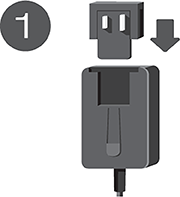
- Place the adapter plug for your location into the channel on the power supply. Slide it down to lock it in place.
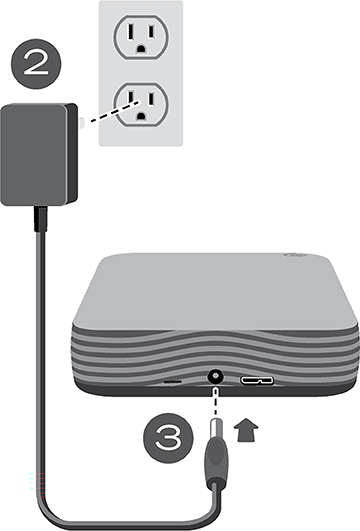
- Connect the power cable to Seagate Expansion.
- Connect the power supply to a power outlet.
Connect to computer
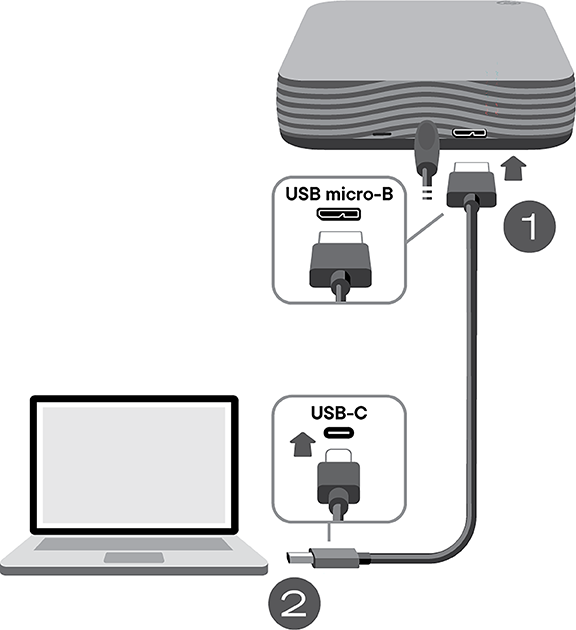
- Connect the USB micro-B end of the cable to the USB micro-B port on Expansion.
- Connect the USB-C end of the cable to your computer’s USB-C port.
LED activity
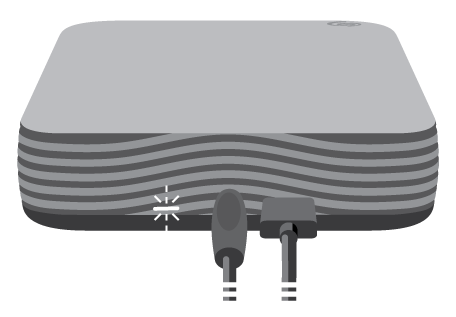
The status LED indicates Expansion status and activities.
| LED | State |
|---|---|
| On (white) | The device is ready. |
| Slow blinking (white) | a. Drive is being accessed. b. Drive has entered power-saving mode. |
| Off | a. Device is unavailable because the drive has been in power-saving mode for an extended period of time. b. Drive has been safely removed from the computer. |
Set up Expansion
The setup process lets you:
| Register Expansion | Get the most from your device with easy access to information and support. |
| Install Toolkit | Set up backup plans and more. |
Register your device
You have two easy options for registering your device:
| Mobile | The quick start guide in your package includes a QR code for fast, convenient registration using your mobile phone or tablet. |
| Windows PC or Mac | Open your drive volume and launch the Start Here app. |
Mobile
- Open the quick start guide included in the package.
- Scan the unique QR code and follow the on-screen steps to register Expansion and access partner offers.

You will receive an email confirming your device registration. The message will include instructions on downloading and installing Toolkit on your Windows PC or Mac.
Windows PC or Mac
- On your computer, use a file manager such as Finder or File Explorer to open the Expansion drive volume.
- Launch Start_Here_Win or Start_Here_Mac.
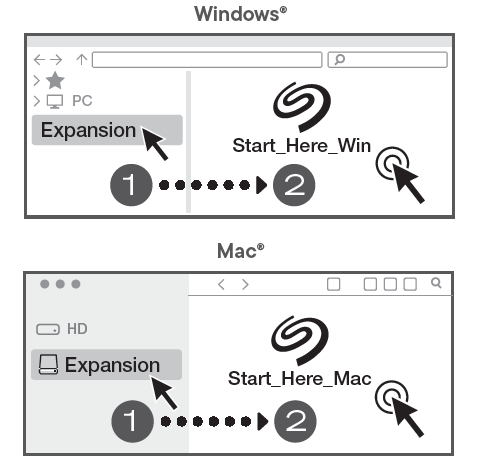
- Use the app to register your device and access partner offers.
- On the Toolkit page, download the Toolkit installer.
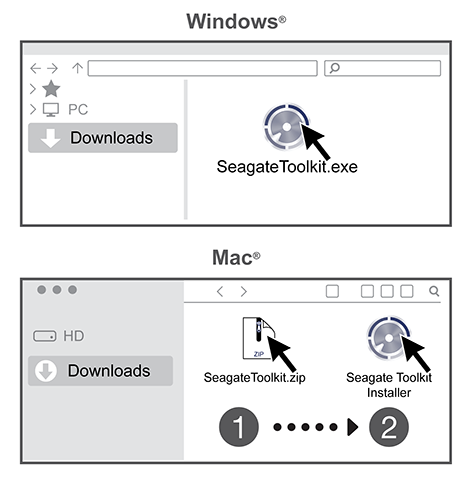
- Using a file manager such as File Explorer or Finder, go to the folder where you receive downloads.
- Win—Double-click SeagateToolkit.exe to launch the application.
- Mac—Open the SeagateToolkit.zip file. Double-click the Seagate Toolkit Installer to launch the application
Shortcuts
If you no longer have a quick start guide with a QR code and the Start Here app has been removed from your drive, you can use the following URLs to register your device and install Toolkit:
| Register | www.seagate.com/register |
| Install Toolkit | www.seagate.com/toolkit |