Was this content helpful?
How could we make this article more helpful?
Getting Started
Connect the USB cable
Use the USB-C cable to connect One Touch to a computer’s USB-C port.
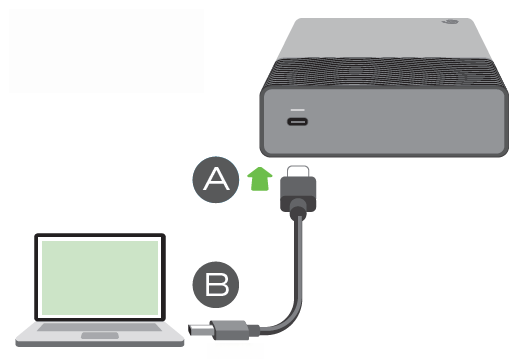
Once connected, it may take 30 seconds or more for the drive volume to appear and be accessible.
LED activity
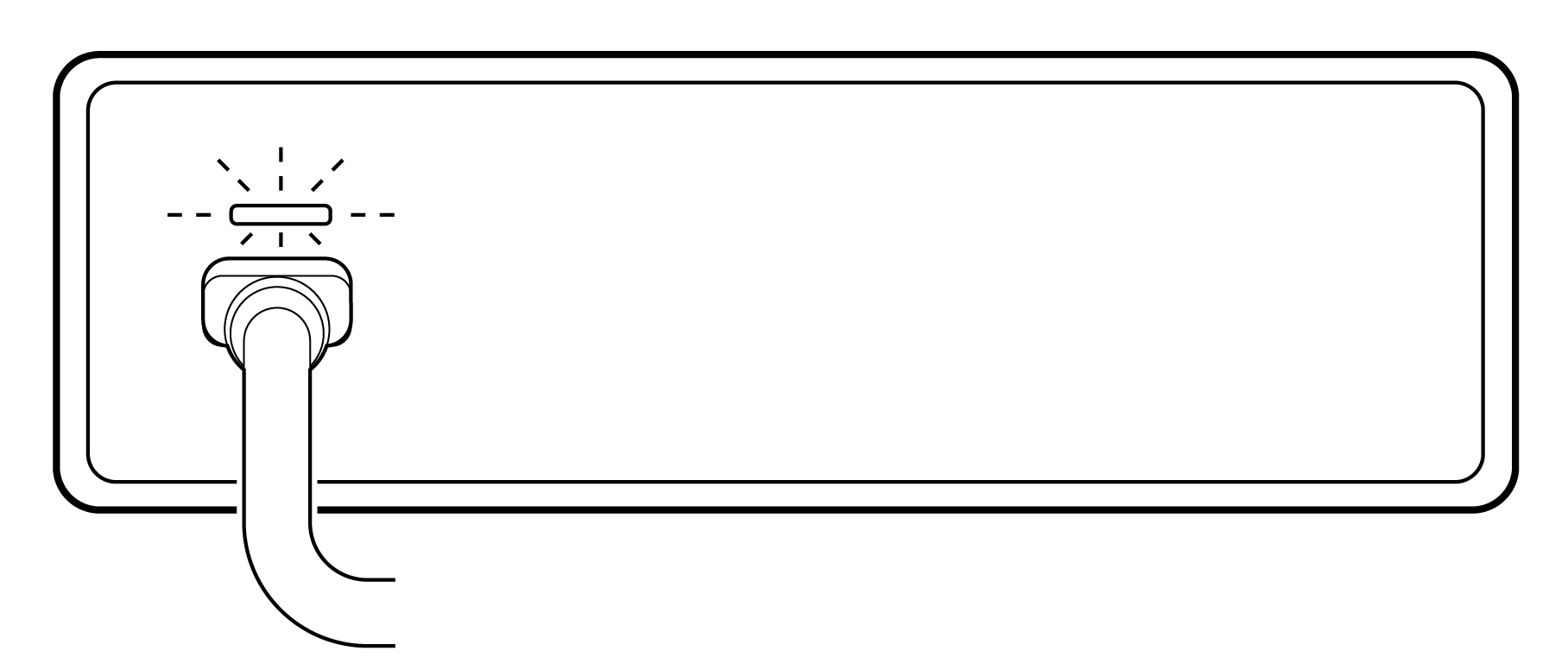
The status LED indicates One Touch status and activities.
| LED | State |
|---|---|
| On (white) | The device is ready. |
| Slow blinking (white) | a. Drive is being accessed. b. Drive has entered power-saving mode. |
| Off | a. Device is unavailable because the drive has been in power-saving mode for an extended period of time. b. Drive has been safely removed from the computer. |
| Fast blinking (red) | Host computer port is not providing a minimum 15 W of power. |
Set up One Touch
The Quick Start Guide in your package includes a QR code for fast, convenient registration using your mobile phone or tablet:
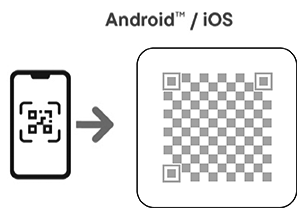
Scan the code in the Quick Start Guide and follow the on‑screen steps to register One Touch and access partner offers.
Alternative setup using a computer
Using a file manager such as File Explorer or Finder, open One and double-click Start_Here_Win or Start_Here_Mac.
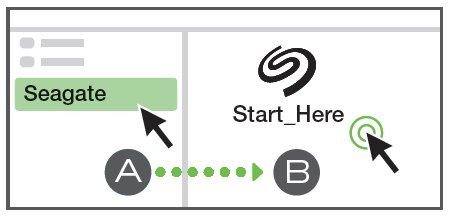
- Register One Touch. Enter your information and select Register.
- Download Toolkit. At the prompt, select Download to download the Toolkit installer.
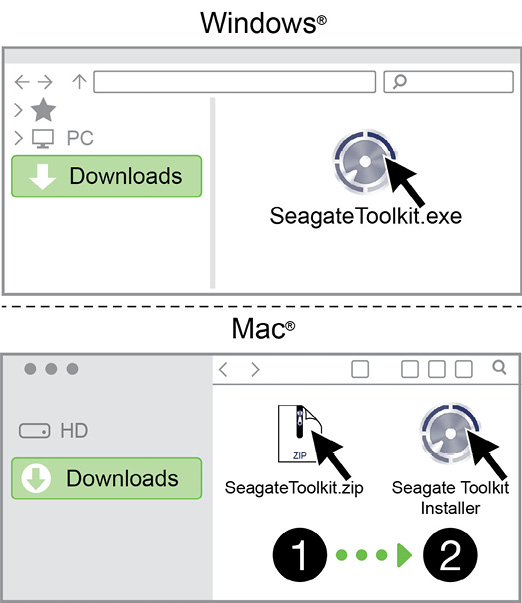
- Using a file manager such as File Explorer or Finder, go to the folder where you receive downloads.
- Win—Double-click SeagateToolkit.exe to launch the application.
- Mac—Open the SeagateToolkit.zip file. Double-click the Seagate Toolkit Installer to launch the application
Shortcuts
If you can no longer access the registration QR code or Start_Here on the drive, use the follwing URLs:
| Register | www.seagate.com/register |
| Install Toolkit | www.seagate.com/toolkit |
Power-saving mode
One Touch can conserve energy by entering power-saving mode. Managed by your computer, power-saving mode can extend the life of the hard drive by sparing it from working during extended periods of inactivity.
You can initiate power-saving mode on your computer by performing one of the following:
- Placing the host computer in sleep mode.
- Windows:
- Go to Control Panel > Hardware and Sound > Power Options.
- Select a power plan and click Change plan settings.
- Select Change advanced power settings.
- Click on Hard disk and Turn off the hard disk after.
- Choose the amount of time the computer should wait before putting One Touch in power-saving mode.
- Click Apply.
- macOS—Go to System Preferences > Energy Saver to enable sleep mode for hard drives.
To exit power-saving mode, review the table below:
| Entering power-saving mode | Exiting power-saving mode |
|---|---|
| The host computer placed the product into power-saving mode due to inactivity. | Access the One Touch volume from the host computer. For example, copy files to the volume. |
| The computer is in sleep mode. | Wake up the computer. Note that it may take 30 seconds or more for the volume to appear when waking from sleep. |