Was this content helpful?
How could we make this article more helpful?
Use Toolkit to Customize RGB Settings and More
Use Toolkit to manage RGB colour settings and set up backup plans for FireCuda Forge.
Install Toolkit
- Open a browser and go to www.seagate.com/toolkit.
- Download the Toolkit installer for your operating system.
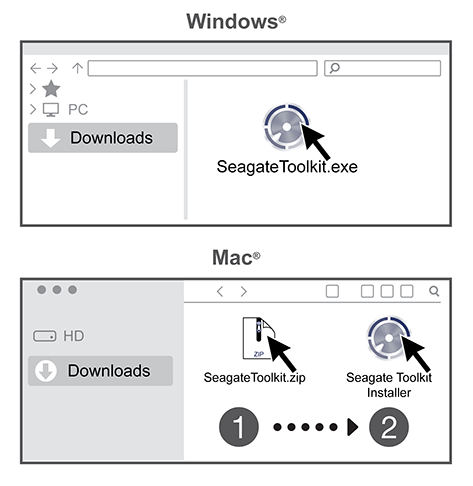
- Using a file manager such as File Explorer or Finder, go to the folder where you receive downloads.
- Win — Double-click SeagateToolkit.exe to launch the application.
- Mac — Open the SeagateToolkit.zip file. Double-click the Seagate Toolkit Installer to launch the application
Customise RGB colour settings (Windows only)
For levelled-up illumination, use Toolkit to customise FireCuda Forge's RGB LEDs with a variety of colours and light patterns.
- Click here for details on managing RGB colour settings.
Start a backup plan (Windows only)
Create a plan customised for the content, storage device, and schedule of your choosing.
Click here for details on setting up a backup plan.
Set up a mirror folder
Create a Mirror folder on your PC or Mac that is synced to your storage device. Whenever you add, edit, or delete files in one folder, Toolkit automatically updates the other folder with your changes.
Click here for details on creating a mirror folder.