Was this content helpful?
How could we make this article more helpful?
Getting Started
Rugged SSD Pro5 performance
You can connect Rugged SSD Pro5 to a USB-C port on your computer, but transfer rates vary:
| Port | Transfer rates |
|---|---|
| Thunderbolt 5 | up to 80 Gbps |
| Thunderbolt 4 | up to 40 Gbps |
| Thunderbolt 3 (Mac only) | up to 40 Gbps |
| USB 3.2 Gen 2x2 | up to 20 Gbps |
| USB 3.2 Gen 2 | up to 10 Gbps |
Rugged SSD Pro5 performance depends upon your computer's USB-C port and operating system. For the latest compatibility details, see the following knowledge base article: LaCie Rugged SSD Pro5 Compatibility.
Connect LaCie Rugged SSD Pro5
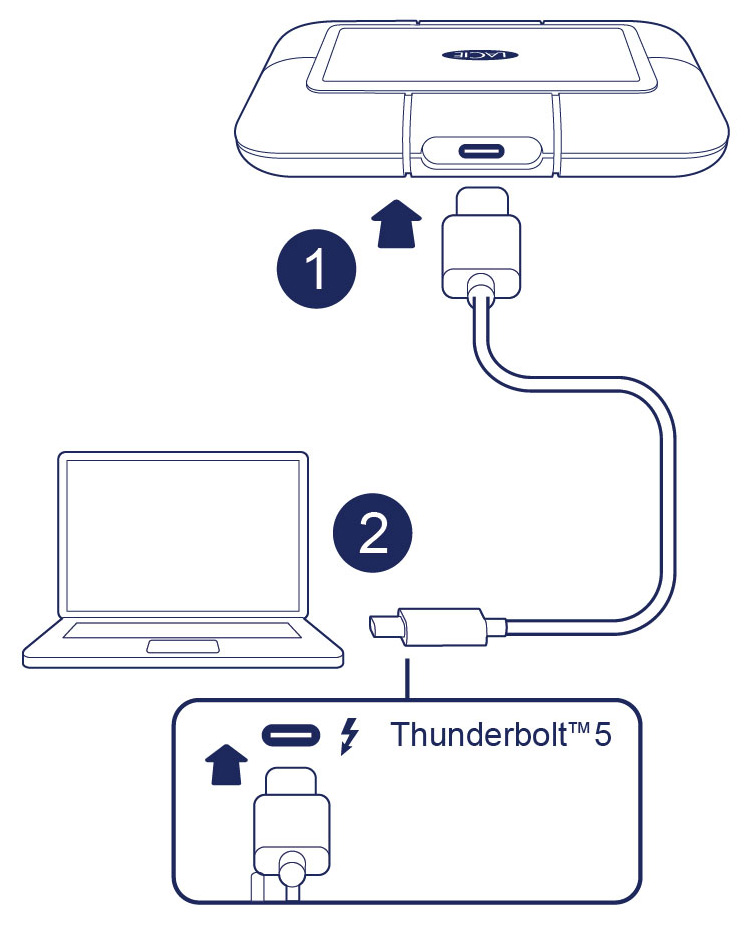
- Plug the Thunderbolt connector into the USB-C port on Rugged SSD Pro5.
- Plug the Thunderbolt connector into a USB-C port on your computer.
Set up LaCie Rugged SSD Pro5
The setup process lets you:
| Register LaCie Rugged SSD Pro5 | Get the most from your drive with easy access to information and support. |
| Install Toolkit | Manage mirror folders, backup plans (Windows only) and more. |
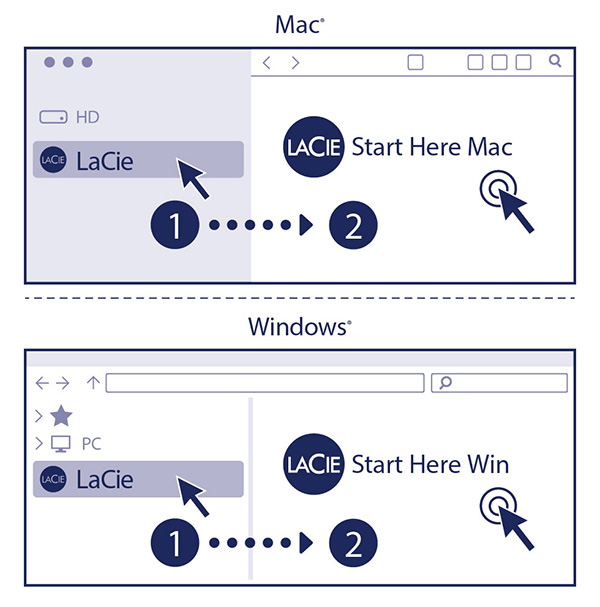
Start here
Using a file manager such as Finder or File Explorer, open LaCie Rugged SSD Pro5 and launch Start Here Mac or Start Here Win.
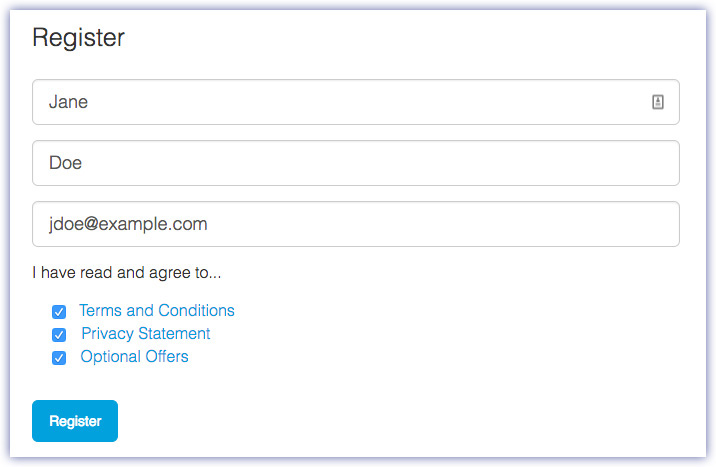
Register your device
Enter your information and click Register.
Download Toolkit
Click the Download button.
Install Toolkit
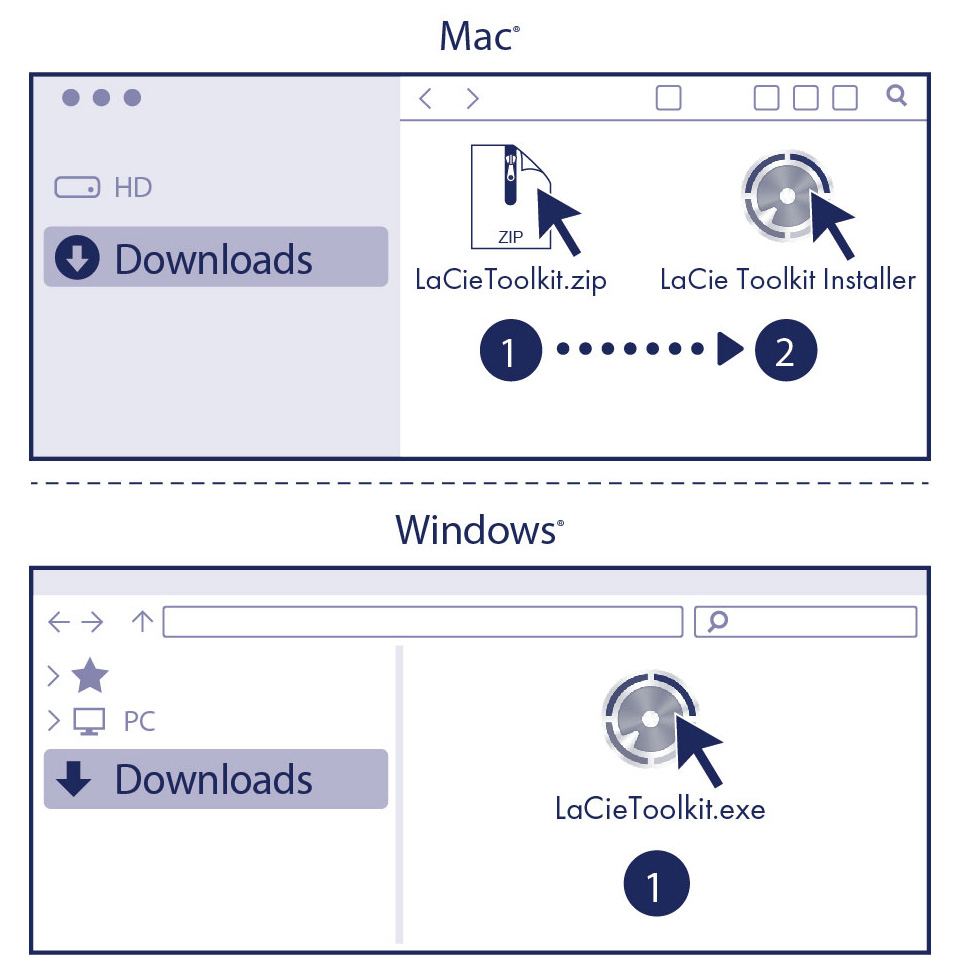
Using a file manager such as Finder or File Explorer, go to the folder where you receive downloads.
- Mac — Open the LaCieToolkit.zip file and click on the LaCie Toolkit Installer to launch the application.
- Windows — Click on the LaCieToolkit.exe file to launch the application.