Was this content helpful?
How could we make this article more helpful?
Getting Started
LaCie Rugged SSD4 performance
You can connect your device to any USB-C port on your computer, but transfer rates vary:
| Port | Transfer rates |
|---|---|
| USB 3.1 Gen 1 | up to 5Gb/s |
| USB 3.1 Gen 2 | up to 10Gb/s |
| USB 3.2 Gen 2x2 | up to 20Gb/s |
| USB4 Gen 2x2 | up to 20Gb/s |
| USB4 Gen 3x2 | up to 40Gb/s |
For more details on drive performance, see this knowledge base article.
Connect Rugged SSD4
- Remove the protective cap.
- Plug the USB-C connector into the USB-C port on Rugged SSD4.
- Plug the USB-C connector into a USB-C port on your computer.

Set up Rugged SSD4
The setup process lets you:
| Register Rugged SSD4 | Get the most from your drive with easy access to information and support. |
| Install Toolkit | Manage mirror folders, backup plans (Windows only), and more. |
Your computer must be connected to the internet to register your device and install Toolkit.
Start here
Using a file manager such as Finder or File Explorer, open Rugged SSD4 and launch Start Here Mac or Start Here Win.
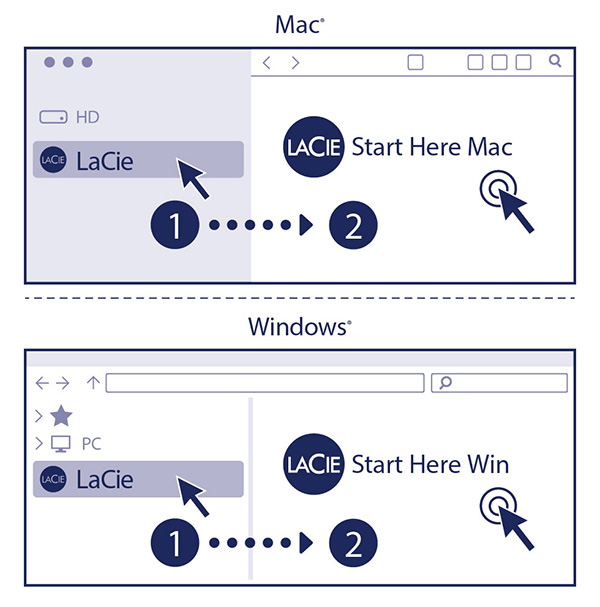
If your drive no longer has a Start Here icon, you can register your device on seagate.com. Toolkit can be downloaded from the Toolkit support page.
Register your device
On the Register tab, enter your information and select Register.
Download Toolkit
On the Toolkit tab, select the Download button.
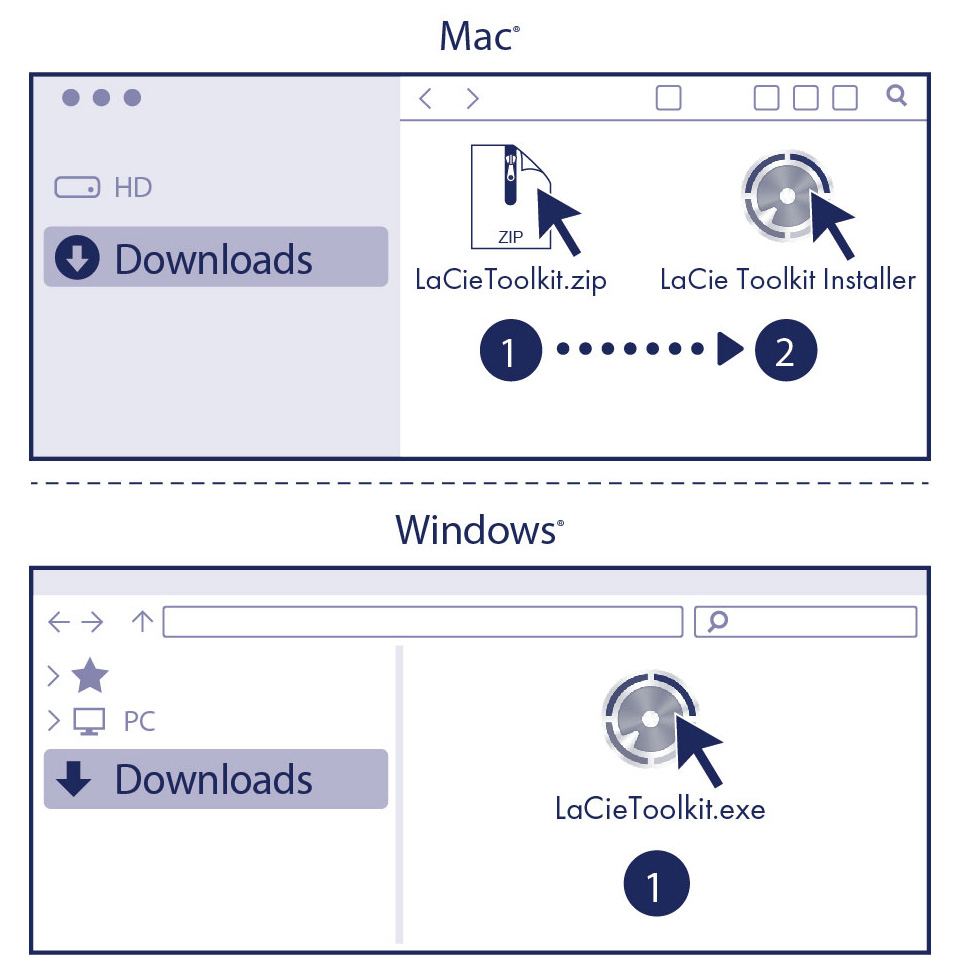
Install Toolkit
Using a file manager such as Finder or File Explorer, go to the folder where you receive downloads.
- Mac—Open the LaCieToolkit.zip file and click on the LaCie Toolkit Installer to launch the application.
- Windows—Click on the LaCieToolkit.exe file to launch the application.