Was this content helpful?
How could we make this article more helpful?
Overview

- Select the arrows to set the month on view. Stats for up to the last five months are available.
- Select New Plan to set up a new migration.
Overview data
View Lyve Cloud destination stats for the selected month.
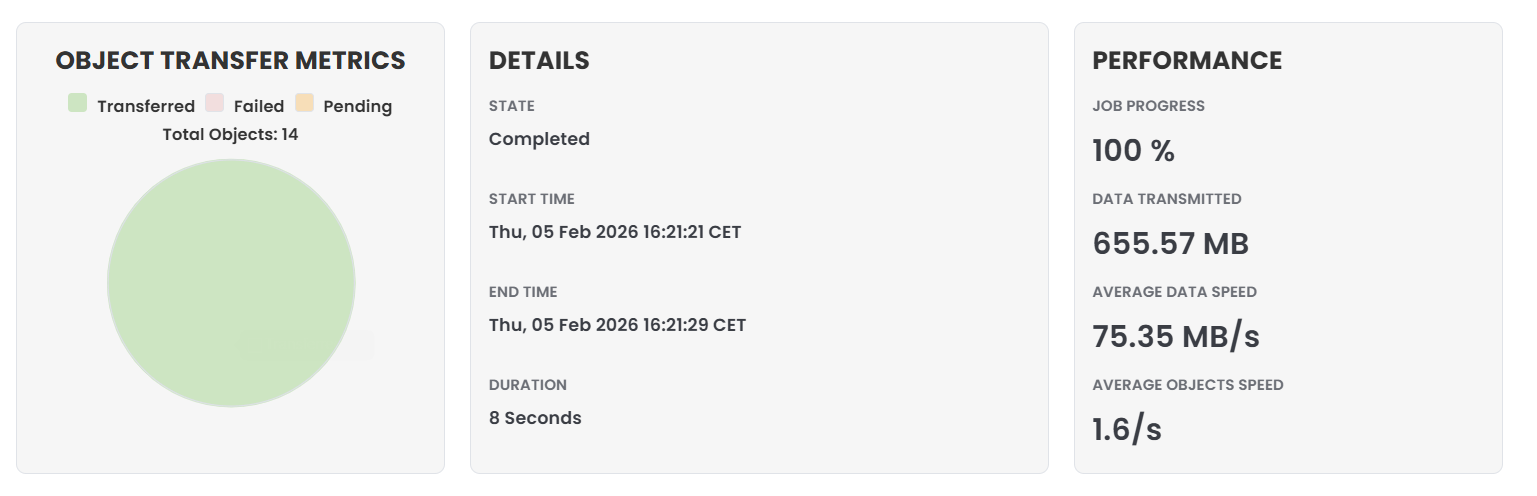
| Object Transfer Metrics | |
| Transferred | Number of completed file transfers |
| Failed | Number of failed file transfers |
| Pending | Number of pending file transfers |
| Total Data Managed | |
| Egress | Total Megabytes (MB) transferred from source |
| Ingress | Total Megabytes (MB) transferred to Lyve Cloud |
| Performance | |
| Jobs Completed | Percentage of total Megabytes (MB) transferred from source |
| Data Transmitted | Total bytes (B) transmitted |
| Average Data Speed | Average transfer rate in bytes per second (B/s) |
| Average Objects Speed | Average number of objects transferred per second |
Job activity
View current and past job activity for the selected month. The following details and actions are available:
| Job ID | ID assigned to migration |
| Start Date | Date and time job was started |
| Source | Source bucket |
| Destination | Destination bucket |
| Status (current jobs) | |
| Queued | Job scheduled but not started |
| Running | Job started and in progress |
| Paused | Job paused |
| Status (past jobs) | |
| Completed | Job completed |
| Canceled | Job canceled |
| Failed | Job not completed |
| Actions (current jobs) | |
 | Pause job |
 | Resume job |
 | Cancel job |
 | Inspect job |
| Actions (past jobs) | |
 | Sync to latest data |
| Inspect job |
Filter past jobs list
Use the dropdown to filter the list of past jobs by job status:

Job insights
To view details about a job, select the Inspect icon in the Current job activity or Past job activity table:
Overview
- Select the Copy icon to copy the job serial number to your clipboard.
- Select the Prepare Report button.
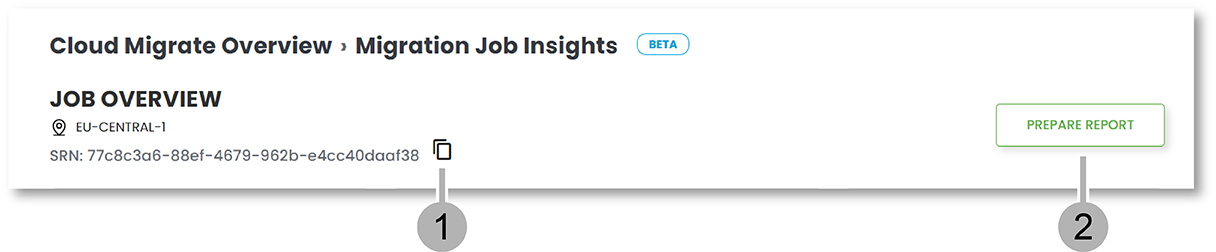
- Select the Download Logs button to download a detailed log of activity events.
Review the following information:
| Object Transfer Metrics | |
| Transferred | Number of completed file transfers |
| Failed | Number of failed file transfers |
| Pending | Number of pending file transfers |
| Total Objects | Total number of objects |
| Details | |
| State | Current job state |
| Start Time | Date and time that job started |
| End Time | Date and time that job ended |
| Duration | Duration of job in days, hours, and seconds |
| Performance | |
| Job Progress | Percentage of total Megabytes (MB) transferred from source |
| Data Transmitted | Total bytes (B) transmitted |
| Average Data Speed | Average transfer rate in bytes per second (B/s) |
| Average Objects Speed | Average number of objects transferred per second |
Configuration
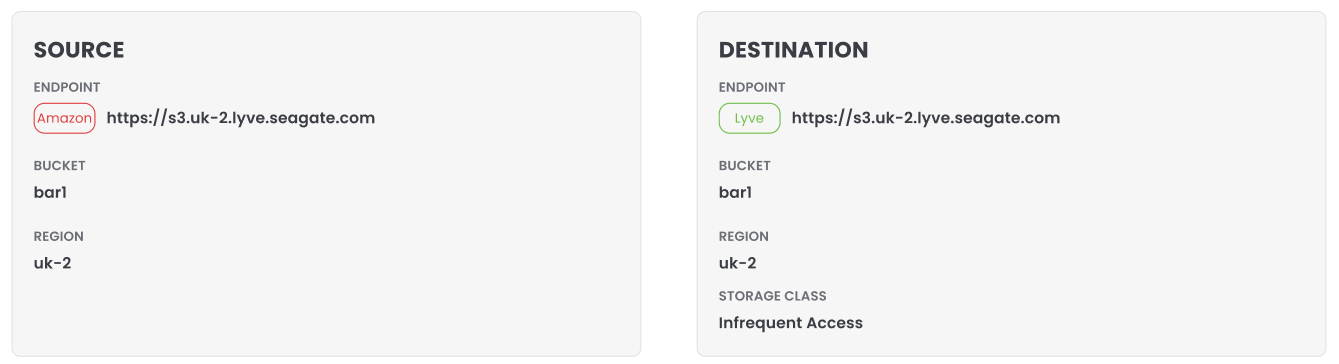
| Source | |
| Endpoint | URL of the source endpoint |
| Bucket | Name of bucket |
| Region | Region |
| Destination | |
| Endpoint | URL of destination endpoint |
| Bucket | Name of bucket |
| Region | Region |
| Storage Class | Offers two storage classes:
|
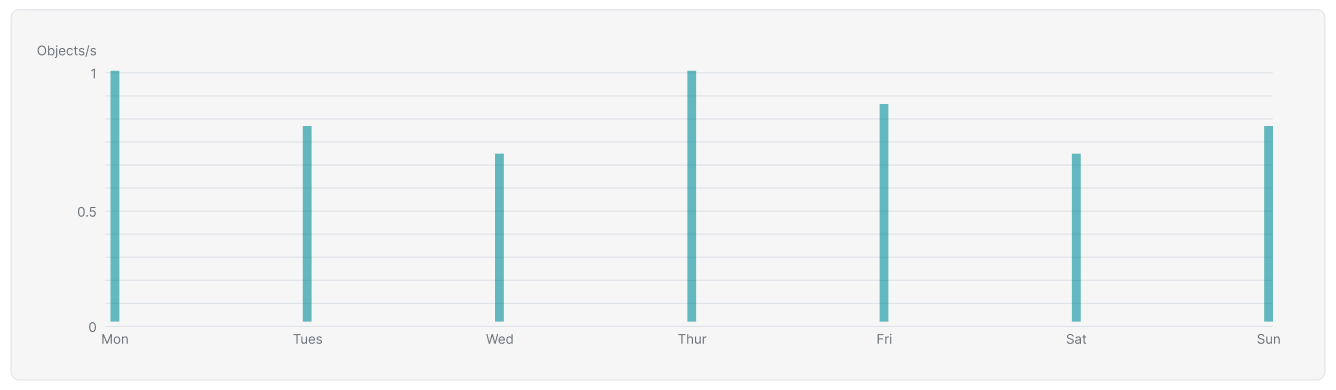
Object Performance
Reports objects transfered by weekday.
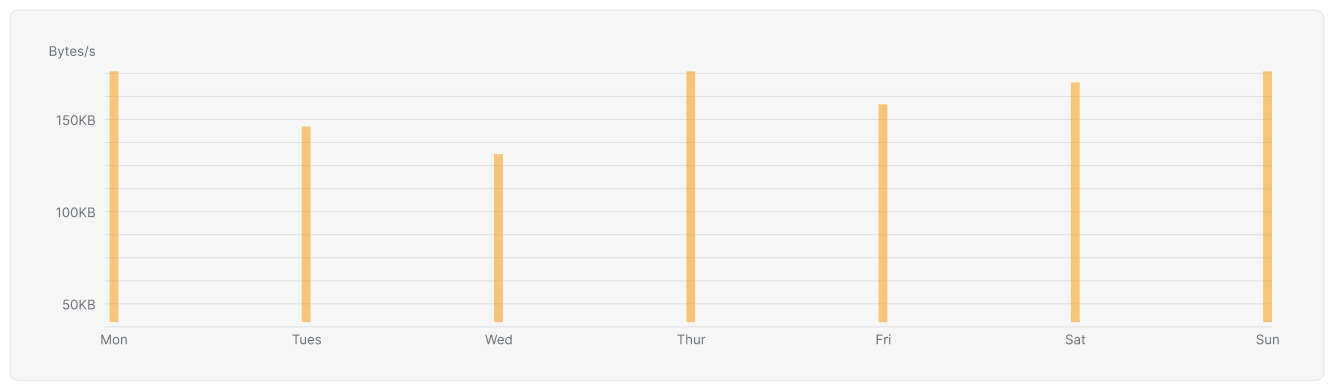
Bandwidth Performance
Reports transfer speed performance by weekday.
Plan Settings
Displays the sync type. (Default: Full)
Plan Notifications
Displays email address for plan notifications (if specified).