- ASEAN (English)
- Australia/New Zealand (English)
- Belgique (Français)
- België (Nederlands)
- Brasil (Português)
- Canada (English)
- Canada (Français)
- Deutschland (Deutsch)
- España (Español)
- France (Français)
- India (English)
- Indonesia (Indonesian)
- Italia (Italiano)
- Latinoamérica (Español)
- Middle East/North Africa (English)
- Nederland (Nederlands)
- Polska (Polski)
- Portugal (Português)
- Singapore (English)
- Türkiye (Türkçe)
- United Kingdom (English)
- United States (English)
- 中国 (简体中文)
- 台灣 (繁體中文)
- 日本 (日本語)
- 대한민국 (한국어)
- Home /
- Lyve Cloud Object Storage Resources Guide /
- Cohesity
Was this content helpful?
How could we make this article more helpful?
OPEN MENU CLOSE MENU
- Acronis
- ActiveImage Protector
- Apostrophe CMS
- Bacula
- BorgBackup
- CloudBoost
- Cohesity
- Commvault
- CrossFTP
- Data Migration Overview
- Data Migration with AWS CLI
- Data Migration with Cloudsfer
- Data Migration with Flexify.IO
- Data Migration with Movebot
- Data Migration with Rclone
- Data Migration with StorageDNA Fabric
- Dell Networker Data Domain
- Duplicacy
- FileBrowser
- How to Create a Pre-Signed URL
- IBM Aspera HSTS Server and Desktop
- IBM Aspera with HSTS
- IBM Spectrum Protect
- Laravel
- LucidLink
- MinIO Client
- NAKIVO Backup and Replication
- qBackup
- Restic
- Rubrik
- S3cmd
- S3FS
- s5cmd
- ShareX
- Signiant Media Shuttle
- SmartFTP
- Starfish
- SyncBackPro
- Syncovery
- tntDrive
- Transmit
- UpdraftPlus
- Using SSE-C to Encrypt Objects
- Veritas Backup Exec
- Veritas NetBackup Media Server Deduplication (MSDP)
- Video Library
- WebDrive
- Commvault
- LucidLink
Lyve Cloud with Cohesity
The Cohesity Data Platform is validated for use with Lyve Cloud Object Storage..
Prerequisites
- Set up a Lyve Cloud service account and create the bucket that Cohesity will use within Lyve Cloud. Ensure you have the access and secret keys for the account, which must have full permissions (read, list, write, and delete) for the designated bucket. While it is recommended to create a dedicated user for Cohesity, this step is optional.
- A Cohesity account
Configuration overview
The configuration for Lyve Cloud with Cohesity Data Platform is divided into two tasks.
- Configure Lyve Cloud Storage Account. For more information, see Provisioning Storage Buckets.
- Create a new cloud storage target on the Cohesity Data Platform (Lyve Cloud service account credentials).
Creating and registering a new cloud storage target on Cohesity
To create and register cloud storage:
- Create an External Target. Navigate to the Inventory section of the Cohesity Dashboard. Select External Target, and then select Register External Target.
- On the New Target page, enter the following:
- Choose Archival: This allows copying of data in Lyve Cloud and is used to import data to other locations for disaster recovery.
- Type: Select S3 Compatible from the list.
- Bucket Name: Enter the bucket name. You must add the same bucket created while configuring a Lyve Cloud account as a target bucket. This cannot be modified after you register the target.
- Access Key ID: Enter your access key. The access key is displayed when you create a new key for a user in Lyve Cloud. A key contains bucket credentials for Lyve Cloud to access a bucket.
- Secret Access Key: Enter your secret key. The secret key is displayed when you create a new key in Lyve Cloud. You should save the details at that time.
- Endpoint: Enter the S3 endpoint of the Lyve Cloud bucket. Important—Do not include https:// in the endpoint URL.
- Port: Set to 443.
- Secure Connection (HTTPS): Toggle secure connection to ON.
- AWS Signature version: Choose the AWS signing process version for adding authentication information to the requests.
- ver 2: Select signature version 2 to authenticate.
- ver 4: To use signature version 4, you must contact Cohesity support at support@cohesity.com and mention the ticket number ENG-297700 to add a region.
- Encryption: Toggle encryption to ON, so that the stored data is sent in an encrypted format.
- Compression: Toggle Compression to ON, where it determines whether to send data to the External Target in a compressed format.
- Source Side Deduplication: Toggle to ON, where it determines whether to deduplicate data before sending it to the External Target.
- Bandwidth Throttling: Toggle to OFF, as it limits the maximum data transfer rate from and to this External Target during a time window.
- Select Register.
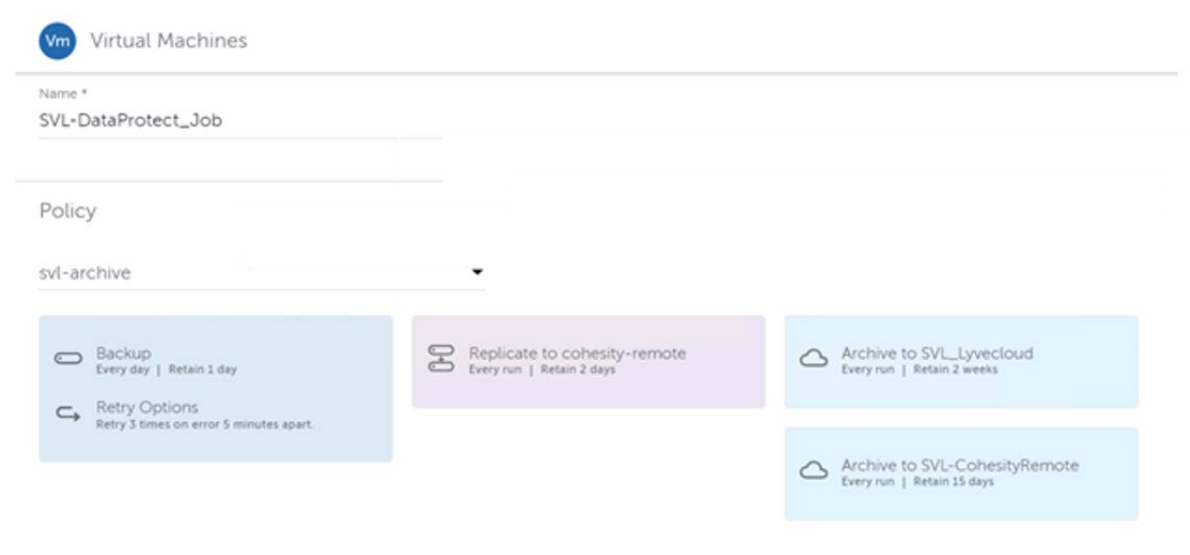
- Create a Data Protection Policy for clients that need backups.
For more information on Cohesity, visit cohesity.com.
Lyve Cloud Object Storage Resources Guide