Key Takeaways
- The main different types of solid-state drives are SATA, NVMe, M.2, U.2 and PCIe.
- These are distinguished by their classification as a protocol, interface and/or form factor.
- SSDs work by using NAND flash memory, which allows devices to store bits of information in cells even after a device has been shut off.
- NAND flash memory can be categorized as SLC, MLC, TLC, QLC and 3D NAND, which indicates the level of performance, efficiency and speed.
- Regardless of NAND category and SSD, best practices emphasize overprovisioning as a way of improving longevity and minimizing digital waste.
Introduction
Solid-state drives (SSDs) have transformed the world of storage media. They lack the spinning disks and moving parts of traditional hard drives and can achieve much higher benchmarks of speed and responsiveness as a result.
Unlike hard drives, though, the differences in SSD types can matter a lot, including whether your device can use the drive.
Whether it’s for an individual system or an enterprise environment, you need to pick the right SSD type for your device and use case.
To help, we’ll break down the different types of SSDs, their unique characteristics, and the pros and cons of each. There are a lot of technical terms to get through, but it’s simple once you get past the jargon.
And understanding the options available to you will make it easier to get faster data access, enhanced storage capacity and high- performance results you’ve been hoping for.
SSD Types and Their Role in Data Storage
Solid‑state drives store data using NAND flash memory, a form of non‑volatile storage that keeps information even when power is removed. Data is organized into cells and accessed electronically through a controller that manages where information is written, how it’s retrieved, and how the memory is maintained over time.
Because SSDs operate through electronic signaling, performance is shaped largely by the speed of the controller and the bandwidth of the connection to the system. As SSD technology advanced, new high‑speed interfaces were developed to take advantage of its ability to transfer data rapidly.
The compact nature of flash‑based storage also allows SSDs to be built in a wide range of physical sizes. This flexibility led to multiple standardized form factors and interface protocols, each designed for different devices and performance requirements.
These elements—NAND flash memory, the controller, the interface, and the form factor—are what define the main characteristics and categories of SSDs.
Interfaces, Protocols and Form Factors
To understand the current SSD market, we’ll need to quickly delineate a few things.
Protocol: Each SSD is built using a specific code that governs how the motherboard will read and interact with the drive. Protocols are not directly cross-compatible, but an interface socket dedicated to one may be usable by another, either by default or with an adapter.
Interface: This is how the components physically connect with each other. The interface is governed in large part by actual shape and size, with cross-compatibility depending on socket types.
Form factor: Form factor refers to the overall shape and size of the hardware itself. Often, protocol and interface will dictate what form factors are compatible. Even then, each form factor standard may have varying sizes under that umbrella.
Here’s a list containing a few examples of each, as it relates to the discussion in this article:
- SATA: Protocol and interface type
- NVMe: Protocol
- PCIe: Interface type
- M.2: Form factor and unique interface type
- U.2: Interface type and form factor
What Is a SATA SSD?
SATA is a protocol and a connection type. These are drives that use the same protocol as hard drives and connect via the same interface socket type (usually). It’s worth mentioning that some SATA SSDs don’t use the SATA interface; they’re just encoded with that protocol.
SATA is well-known and widely used as one of the most common and compatible SSD types. It predates widespread adoption of SSDs as storage media and was originally designed for use with hard drives.
Though it’s been around a while, SATA still sees quite a bit of use as an interface. The technology is established and familiar, and it’s what modern hard drives still use.
This is likely because SATA drives tend to be more affordable, and you can find compatible ports on most devices. Even in the absence of a dedicated SATA slot, adapters are readily available on the market.
For example, SATA III — the third generation of the SATA interface — provides significant speed boosts and is backwards compatible with previous versions.
In addition to affordability and compatibility, SATA drives are often hot-swappable and cross-compatible with hard drives.
SATA does have a few limitations, however. Both the protocol and the connection lack the ability to make full use of the improved speed SSDs can achieve. And drives that use SATA sockets are limited to form factors like those of hard drives.
What Is an NVMe SSD?
NVMe is a newer protocol, purpose-built for SSD technology. It’s this protocol that enables devices to achieve faster, more stable interfacing with flash-based memory.
One of the ways it does this is by transmitting data using multiple “lanes” that all operate simultaneously. In particular, it uses the PCIe interface as the primary pathway to communicate with the central processing unit (CPU).
The result is boosted speeds, low latency, better performance and highly responsive drives. This makes them ideal for data-intensive and high-performance enterprise environments, particularly in the areas of infrastructure and system architecture.
Advantages like these have also contributed to the widespread adoption of NVMe SSDs among gamers and creative professionals.
With newer, high-performance drives, gaming rigs can handle modern releases and their increased resource demands. Creative professionals, similarly, can more easily store and retrieve sizable visual or audio assets, speeding up their work.
What Is an M.2 SSD?
M.2 is where things can get a little confusing if you’re not careful. That’s because M.2 refers to a class of form factors, but they also have their own corresponding interface sockets.
To start, M.2 SSDs can be either SATA protocol or NVMe protocol. And the interface can be a PCIe connection or a SATA connection with the M.2 versions of both being different from the originals.
Finally, M.2 drives can come in one of three flavors regarding the connection: compatible with SATA, PCIe or both.
You can identify both the drive type and the socket type by looking at the pins and the “teeth” pattern. Every M.2 socket is either an ‘M key’ for PCIe or a ‘B key’ for SATA.
The key type determines which side the notch or gap in the pins will be. This way, only compatible drives will fit in the socket.
On the drive side, the SSD will either match the M or B key exactly. Or, it will be a B+M key, where there are two notches in the teeth. This means it can fit in either socket type, but the actual interface and maximum speed depend on both the drive and the motherboard slot (some B+M drives are SATA, others use PCIe with fewer lanes).
Other than the socket-related compatibility concerns, the main characteristic worth noting about M.2 drives is their actual size. These drives take the form of thin, rectangular chips and they come in several standard lengths.
Each M.2 drive will have a four-digit number in its name, and that designates its size category (measured in millimeters).
For example, an M.2 2280 is 22 mm wide and 80 mm long, a fairly common size in laptops and PCs. Smaller versions — like the M.2 2230 — see lots of use in compact devices, like tablets and portable gaming handhelds.
What Is a PCIe SSD?
PCIe is a socket type. If you use a desktop computer, the tower itself likely has several such interfaces. A PCIe bus is what all your component cards use to connect to the motherboard. The interface comes in four different sizes: PCIe x1, PCIe x4, PCIe x8 and PCIe x16.
The number corresponds to the number of lanes for transferring data simultaneously. Larger sizes are more ideal for high-performance computing and managing critical data. Most SSDs use PCIe x4, which is why they look a lot like M.2 sockets, but standing up.
Without rehashing too much, an SSD that fits a PCIe socket is almost always an NVMe drive. SATA drives can be modified with adapters to fit a PCIe socket, but they’ll be limited by the maximum thresholds of their protocol no matter what.
And PCIe slots can either look like those desktop examples, or they can come in the form of M.2 ports for a more compact form factor.
The primary advantages of PCIe SSDs include:
- The best speeds and performance available on most consumer and endpoint devices.
- Easy installation (provided the rig is designed to be opened without special tools).
- Compatible sockets can be found in most modern PCs and compatible hardware is easy to find.
- Sockets of a newer PCIe generation will accept SSDs of an older one with full backward compatibility.
- Design facilitates more efficient operation and more compact form factors.
The main disadvantages — especially in comparison to SATA SSDs — include:
- PCIe comes at an increased price for equivalent storage capacities.
- SSD of a newer PCIe generation will not function in an older PCIe socket.
- High-capacity hard drives and SATA SSDs require adapters to fit PCIe sockets.
- PCIe is not hot-swappable and can be harder to install on more compact devices.
What Is a U.2 SSD?
U.2 is both an interface and a form factor. It bridges SATA SSDs and NVMe PCIe SSDs, balancing compatibility and performance. This makes it, in many ways, the best of both worlds.
Perhaps most importantly, U.2 drives (and the sockets designed for them) are the best suited to hot swapping. This is the process of easily pulling a drive and replacing it with another one.
Most consumers don’t need to trade out drives as if they were cartridges. But data centers, infrastructure and operations (I&O) teams managing server environments and other enterprise use cases often do.
Relatedly, U.2 SSDs haven’t seen much in the way of widespread implementation on endpoint devices. Despite their advantages, they tend to cost more. Most consumers can’t use the most important benefits the increased price tag affords them.
As such, enterprise environments tend to be the most frequent places where U.2 drives can be seen. These are use cases where storage density is a major factor and where replacement, expansion and modification often need to happen rapidly.
NAND Storage Types
Protocols, interfaces and form factors aside, there are some fundamental characteristics of SSDs that impact their durability, speed, capacity and affordability.
Technically, we’ve had solid-state memory for a long time; that’s what random-access memory (RAM) is. The main distinction between that and SSDs is that RAM ‘forgets’ everything once you turn it off. It requires power to maintain the data it carries.
NAND flash memory was the first innovation to allow data to persist in the cells even without a constant supply of power.
NAND flash chips have come a long way, and we’ve diversified the designs over time. At the most fundamental level, the characteristics of solid storage media depend on the type and arrangement of memory cells.
Flash memory — and by extension SSDs — are made up of individual units called cells. These cells can store a limited number of bits. We indicate the cell type and how much each can hold with abbreviated designations:
- SLC (single-layer cell): Can only hold a single bit per cell
- MLC (multi-layer cell): Usually refers to dual-bit cells
- TLC (triple-layer cell): Cells stack data three bits deep
- QLC (quad-layer cell): Cells hold four bits each
Unlike most developments in the tech space, packing progressively more bits into a single cell isn’t necessarily a sign of progress. In fact, there are advantages and drawbacks to going in either direction.
As bits-per-cell go up, it becomes easier to store more information, leading to larger capacities at a lower cost. However, it also amplifies the wear and tear on the memory, reducing the number of times data can be encoded and then wiped from the cell.
Sometimes called program/erase or read/write cycles, the end result is that QLC memory burns out faster than SLC memory.
On the flip side, as bit-per-cell goes down, it becomes more expensive to pack more storage into a single drive. However, it also dramatically improves longevity, as each cell is edited less often.
What’s more, since each bit can be accessed more directly, SLC and MLC memory are faster and more responsive than TLC and QLC.
Ultimately, SLC is expensive enough to produce and use that it’s typically only reserved for enterprise environments, server networks and other infrastructure-sensitive components.
MLC often serves as the premium option for consumer-grade devices, with TLC and QLC filling roles as economy options.
3D Vertical NAND
Originally, cells were arranged horizontally, or two dimensionally, as it were. This limited how much could fit on a chip or in a drive.
Eventually, the technology progressed enough to enable vertically stacking the cells. This is known as 3D vertical NAND (V-NAND). The multiple layers of NAND flash allow for improved storage density while maintaining — or even improving — performance.
In other words, V-NAND facilitates higher capacities and better performance, all without compromising speed or reliability. This makes V-NAND an excellent choice for high-performance computing and enterprise applications, where resource strain can be more intense.
Overprovisioning: Balancing SSD Longevity with Environmental Concerns
Environmental impact is a universal concern with computing systems — from hardware manufacturing to device usage. It all requires power, materials, upkeep and ultimately generates waste (because no tech lasts forever).
Overprovisioning has a different definition in cloud contexts. Specifically, related to SSDs, it’s the practice of installing and dedicating more memory capacity than is actually needed.
Part of this is just best practice. For example, at Seagate, we always recommend keeping SSD usage below 90% whenever possible. But it’s not uncommon, especially in business use cases, to see larger overprovisioning percentages, like 30%.
There are a number of overprovisioning benefits. The key advantage here is improved drive longevity. Think of it like rotating tires. By spreading the wear around, everything lasts longer and you replace components less frequently.
But, this can also present a few environmental concerns. Simply manufacturing flash memory requires a significant amount of power — much of which is still generated by burning fossil fuels.
More memory means more manufacturing, and thus more carbon emissions. It also leads to more hardware material, resulting in more e-waste once it’s disposed of.
On the flip side, it can require less energy to run a system that’s overprovisioned. And drives that take longer to wear out will also take longer to need replacement. This can protect data integrity, extend the asset lifecycle and reduce waste in the long-term.
Hard Drives Will Coexist with SSDs
Despite the rapid advancements in SSD technology, high‑performance hard drives continue to play an important role in modern computing. The way storage technologies are designed means that increased speed often comes with higher costs per gigabyte. While SSDs deliver good performance, they typically require trade‑offs in either price or overall capacity.
Because of this, many systems take advantage of a balanced storage approach that combines SSDs and high performance hard drives. This setup is widely used in consumer devices as well as enterprise environments. Hard drives excel at providing large amounts of reliable, high performance, making them ideal for hosting extensive data collections. Their high storage density and proven durability make them a natural fit for cloud infrastructure, data centers, backups, and long‑term data retention—working alongside SSDs to create a flexible and efficient storage solution.
Explore Seagate Hard Drives and Flash Storage Options
From high-capacity enterprise hard drives to advanced SSDs, Seagate offers a comprehensive range of hard drives and NAND flash storage solutions to cater to diverse needs.
Exos Enterprise Hard Drives
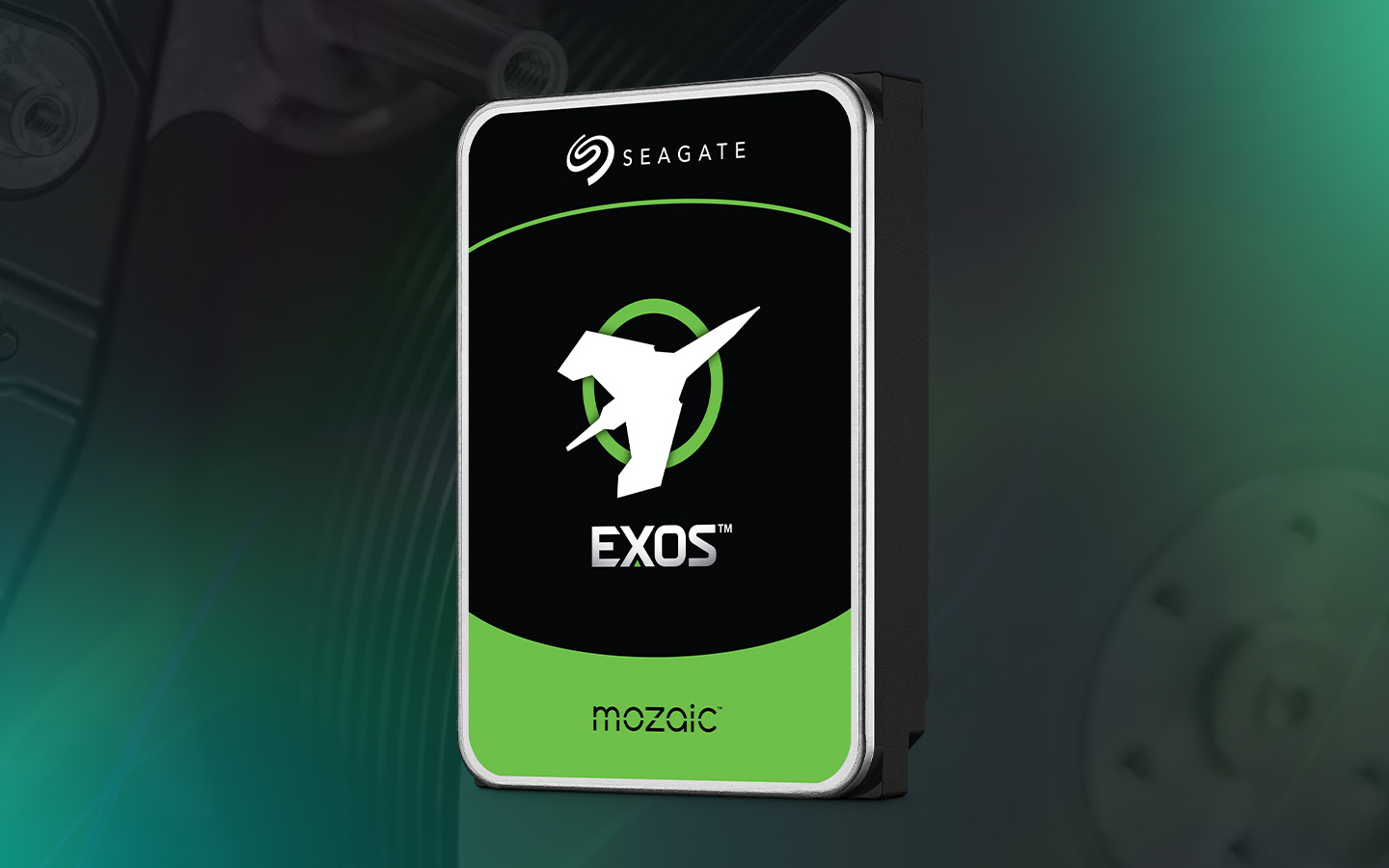
The Seagate Exos series of enterprise hard drives is designed to deliver unparalleled reliability, scalability and performance for data-intensive applications in enterprise environments.
With capacities ranging from terabytes to petabytes, these hard drives are optimized for 24×7 operation, offering robust data security and high-speed data access.
Whether powering cloud infrastructures, data centers or massive-scale enterprise storage systems, Exos hard drives provide the durability and efficiency required to handle mission-critical workloads.
Nytro Enterprise SSD
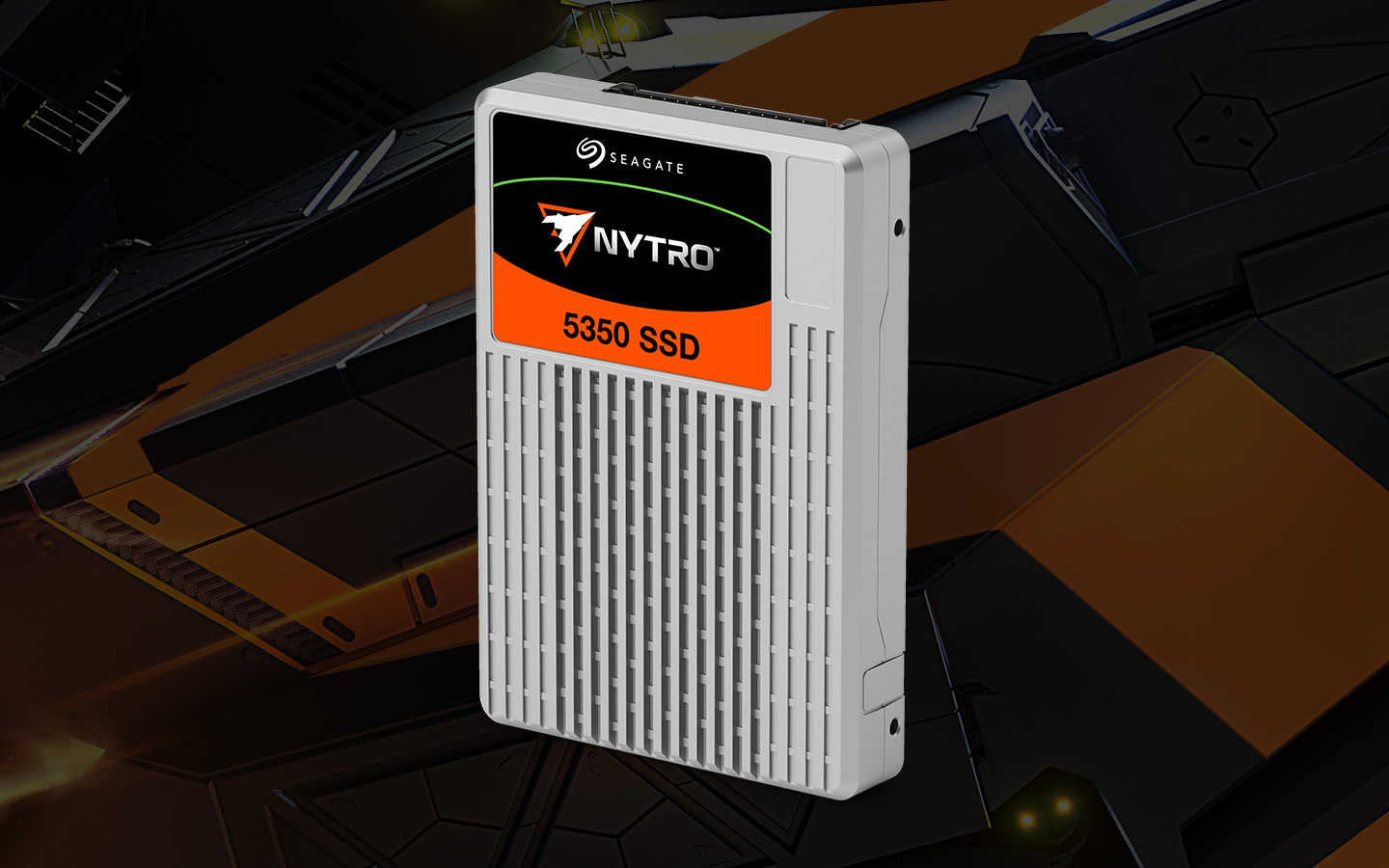
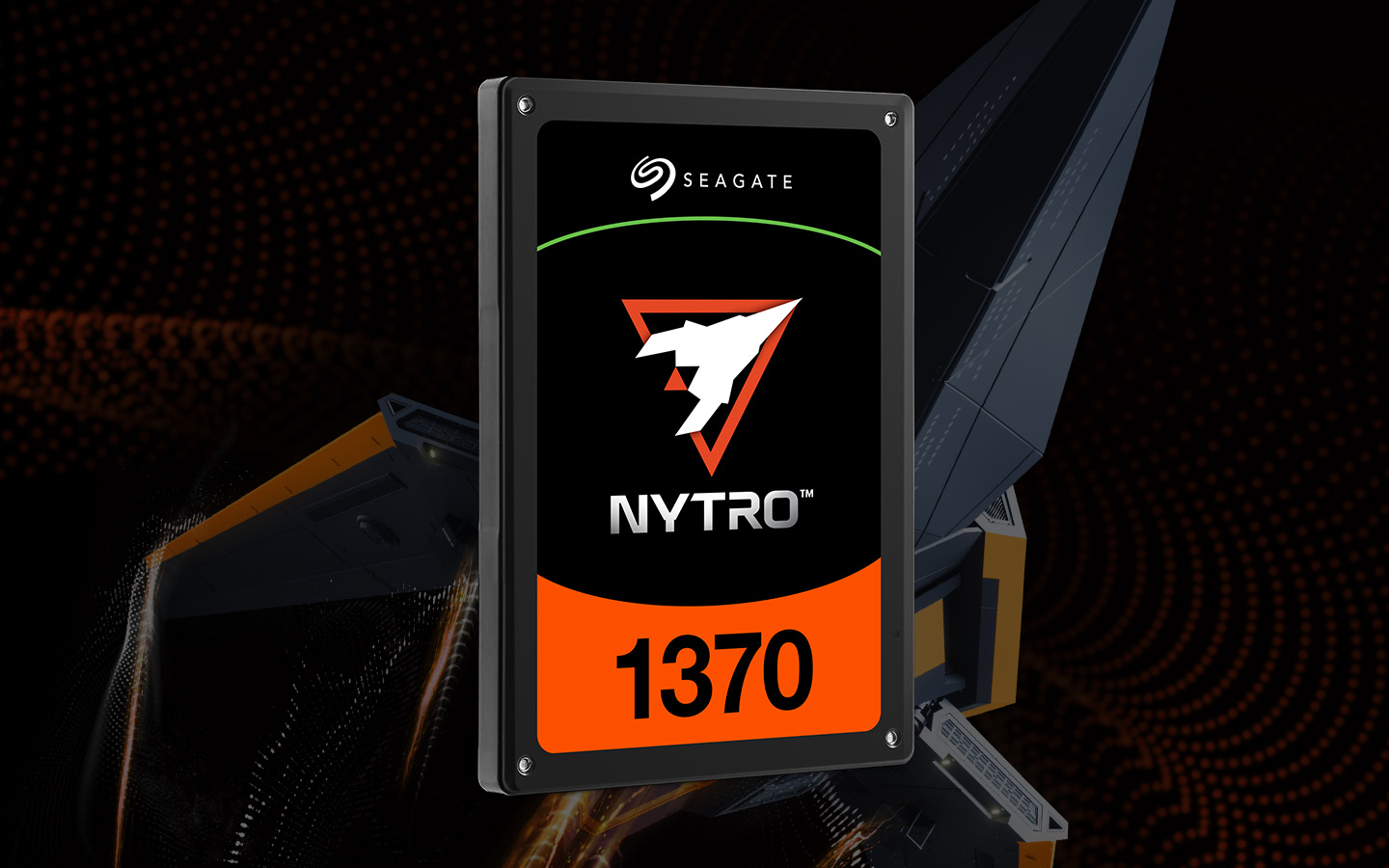
Seagate Nytro® series of enterprise SSDs is engineered to meet the demands of high-performance storage applications in data-intensive environments.
These SSDs are optimized to enhance data center efficiency, reduce power consumption and maximize storage capacity without compromising performance.
They have exceptional read and write speeds, low latency and consistent performance. This makes them ideal for virtualization, database management, content delivery networks (CDNs) and other enterprise workloads that require rapid data access and processing.
Choose the Right Storage Solution with Seagate
Storage media is a complicated subject. Under the surface level discussion of SSDs, hard drives and best product lists, there’s an entire industry dedicated to designing, engineering, innovating and optimizing computer technology with data storage assets.
As part of that business ecosystem, we know how deep that rabbit hole goes and don’t blame anyone for finding it confusing.
That’s why Seagate offers a comprehensive range of various drive types to help IT decision makers, enterprises and professional users solve their storage concerns.
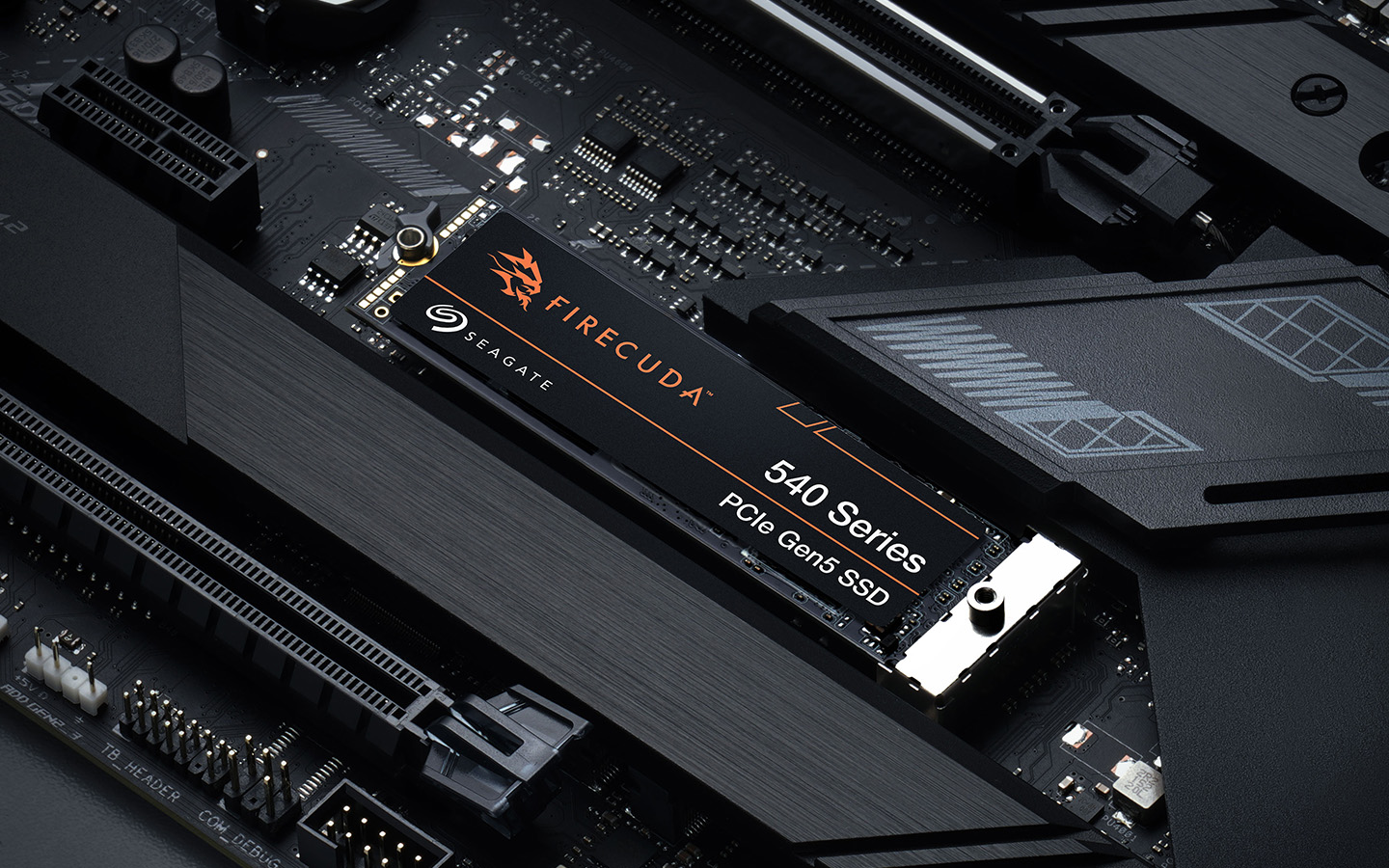
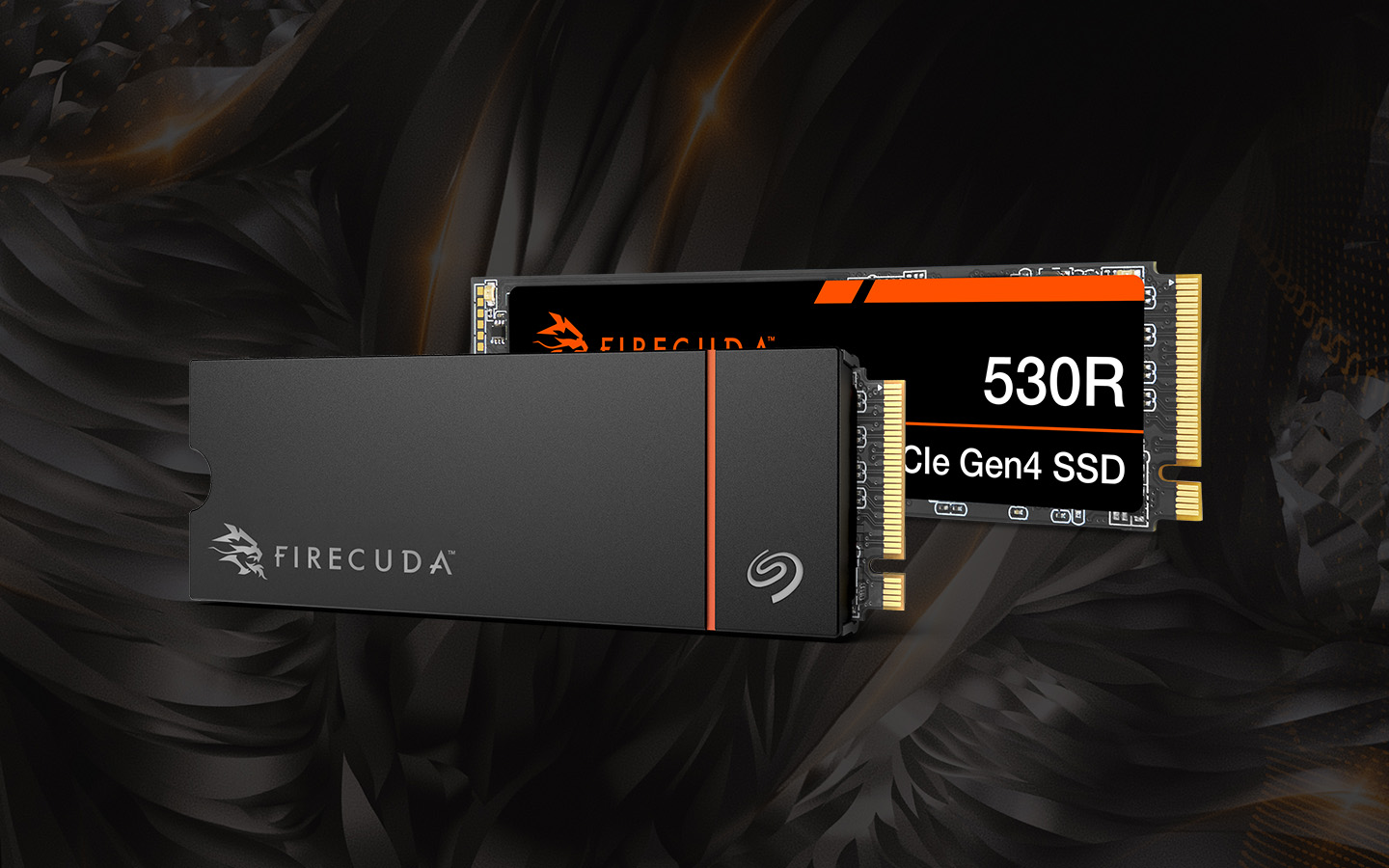
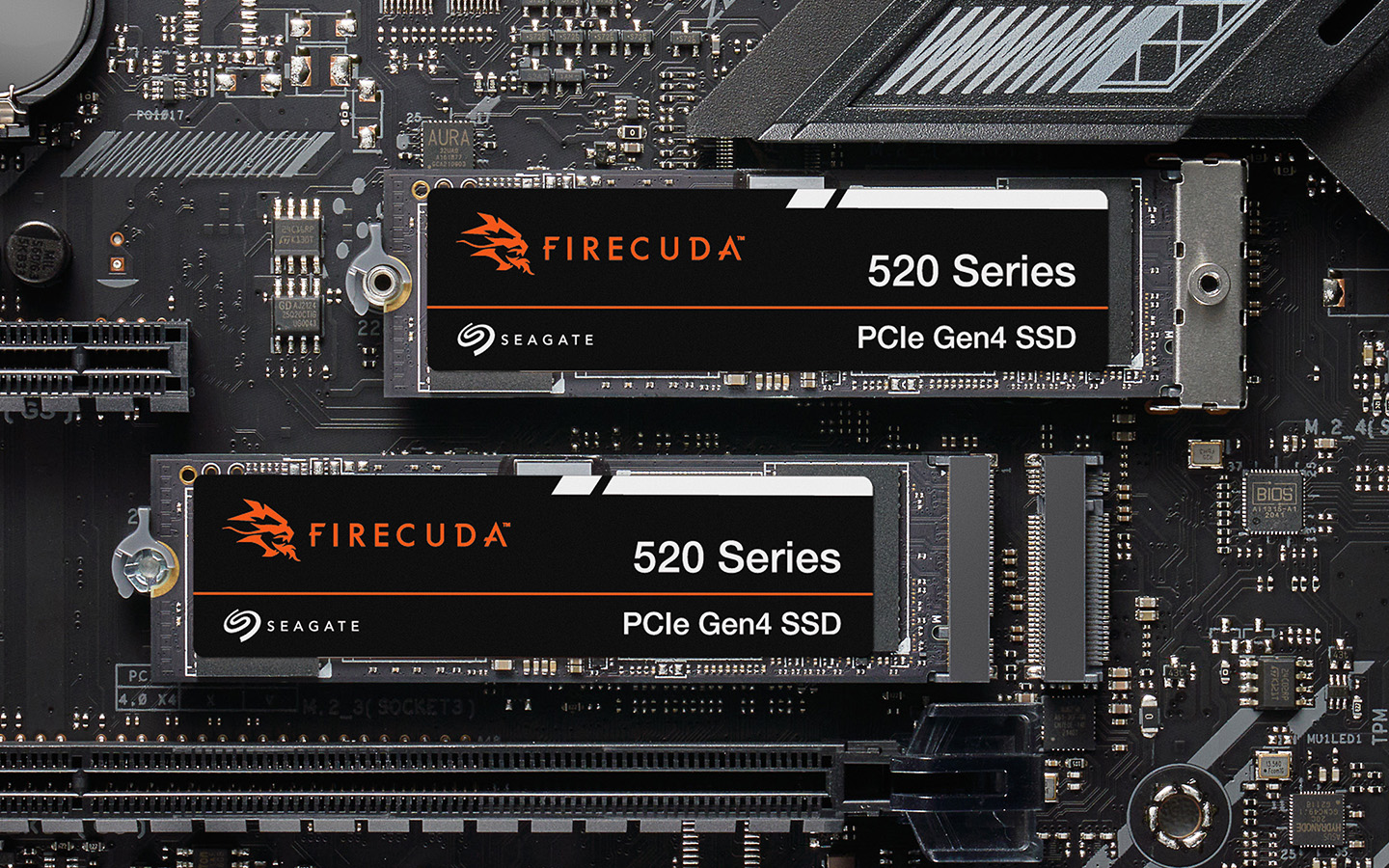
From high-capacity Exos enterprise hard drives, to Nytro enterprise SSDs, to our FireCuda® and BarraCuda® lines of hard drives and SSDs, Seagate’s product catalog addresses a broad range of use cases.
Seagate’s diverse portfolio of storage solutions empowers businesses and individuals to navigate the complexities of modern data storage, unlocking new possibilities in performance, scalability and reliability. Seagate is your trusted partner in driving storage innovation.
Ready to harness the power of advanced SSD technology? Talk with an expert to discover the perfect storage solution for your needs.
FAQs About SSD Types
In most cases, a discussion of SSD types will focus on SATA SSDs, NVMe SSDs, PCIe SSDs and M.2 SSDs.
SATA SSDs can be installed in older, traditional hard drive connection slots. NVMe SSDs use either PCIe interface slots or the M.2 form factor sockets. And M.2 form factor drives use a specific slot and interface, but could come in SATA, NVMe or dual-compatible varieties.
M.2 is a form factor and interface type, not a protocol or memory type. Some M.2 drives are SATA SSDs, while others are NVMe SSDs. NVMe tech is faster than SATA, but a compatible NVMe drive installed in a SATA M.2 interface will be limited by the bandwidth of the interface.
Drive types, memory types and even capacity sizes all vary in value and usefulness depending on where and how they’re used.
Enterprise data centers may find U.2 drives a worthwhile investment despite a high price tag. Meanwhile, those using consumer-grade devices may find the affordability of TLC PCIe drives preferable.
A 2.5 SSD and mSATA both use NAND flash memory (i.e., they are SSDs). But, the 2.5 SSD is built to match the form factor of traditional hard drives more closely.
Meanwhile, mSATA is a form factor and interface type that was replaced by the M.2 form factor. Although they look similar and you can still find some mSATA ports on some laptop models.